Part 1 For owners
1 · Getting started
Open The QR Bistro (theqrbistro.com) on a laptop or tablet. Sign in with Google, or create an account with your email.
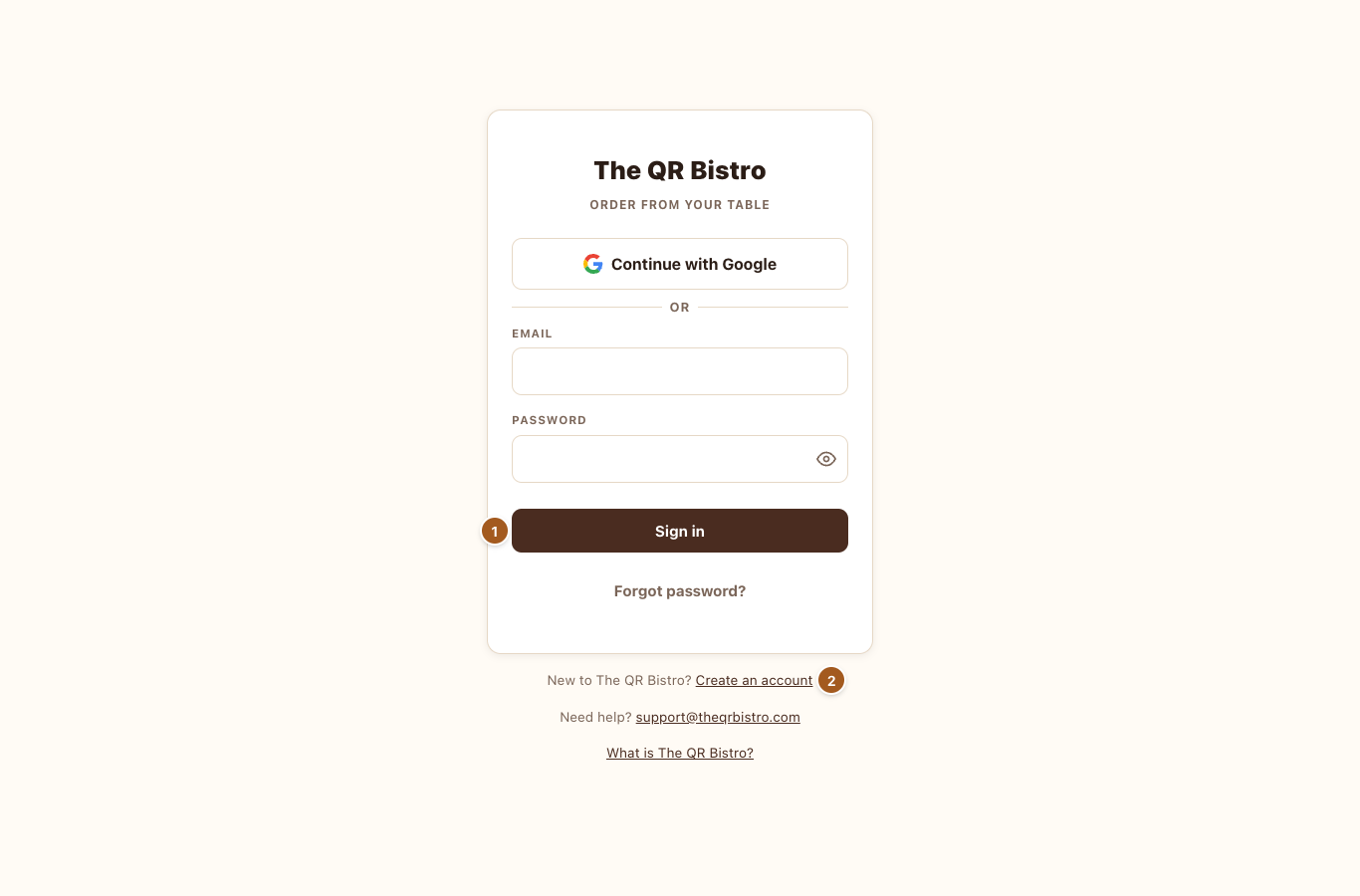
- Sign in — when you already have an account.
- Create an account — the first time.
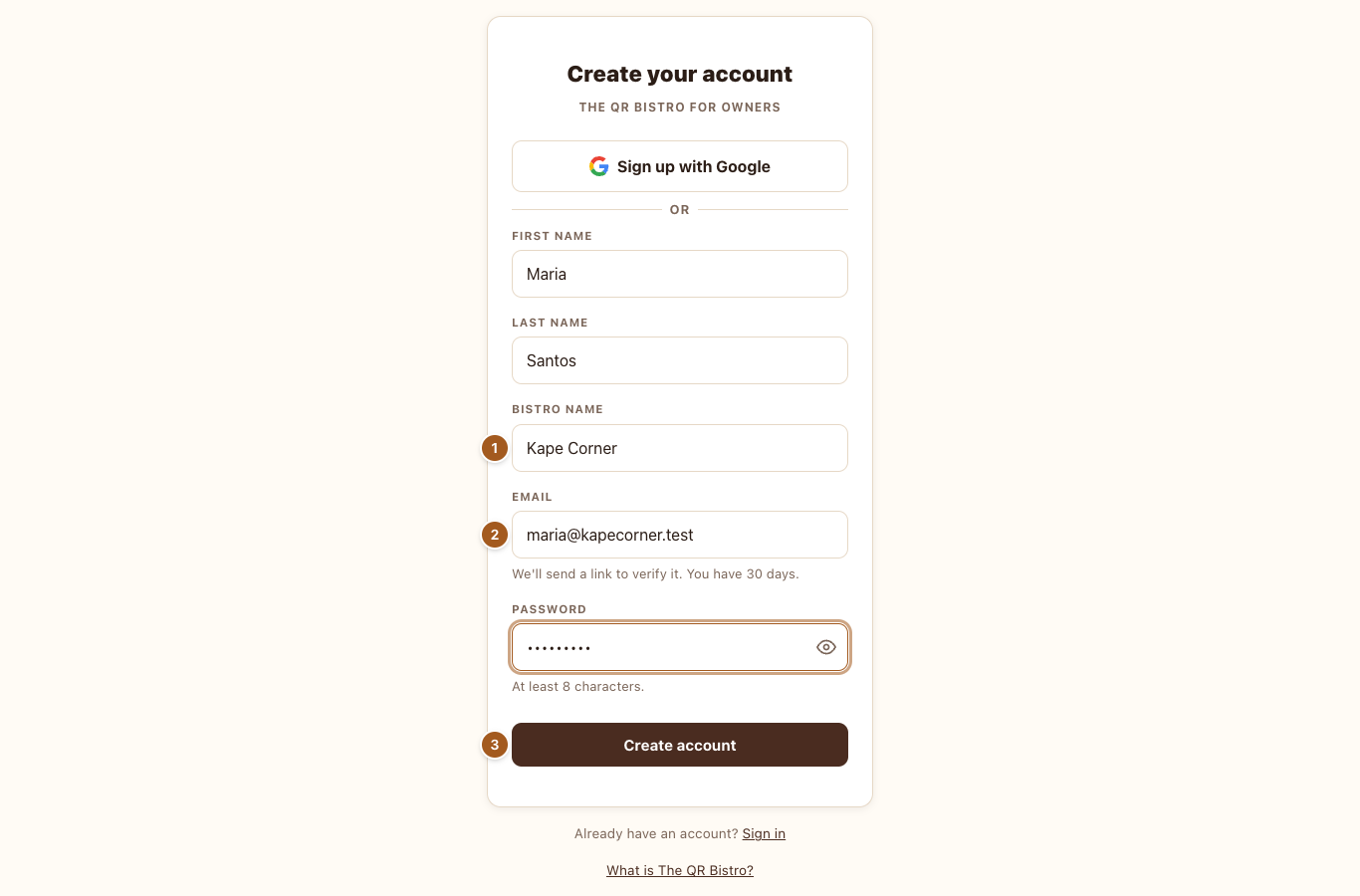
- Bistro name — guests see it on the menu and on your table cards.
- Email — we send a link to check it's yours.
- Create account — your bistro is ready straight away.
Signed up with Google? You'll see a short “Set up your bistro” form first: your name and your bistro's name.
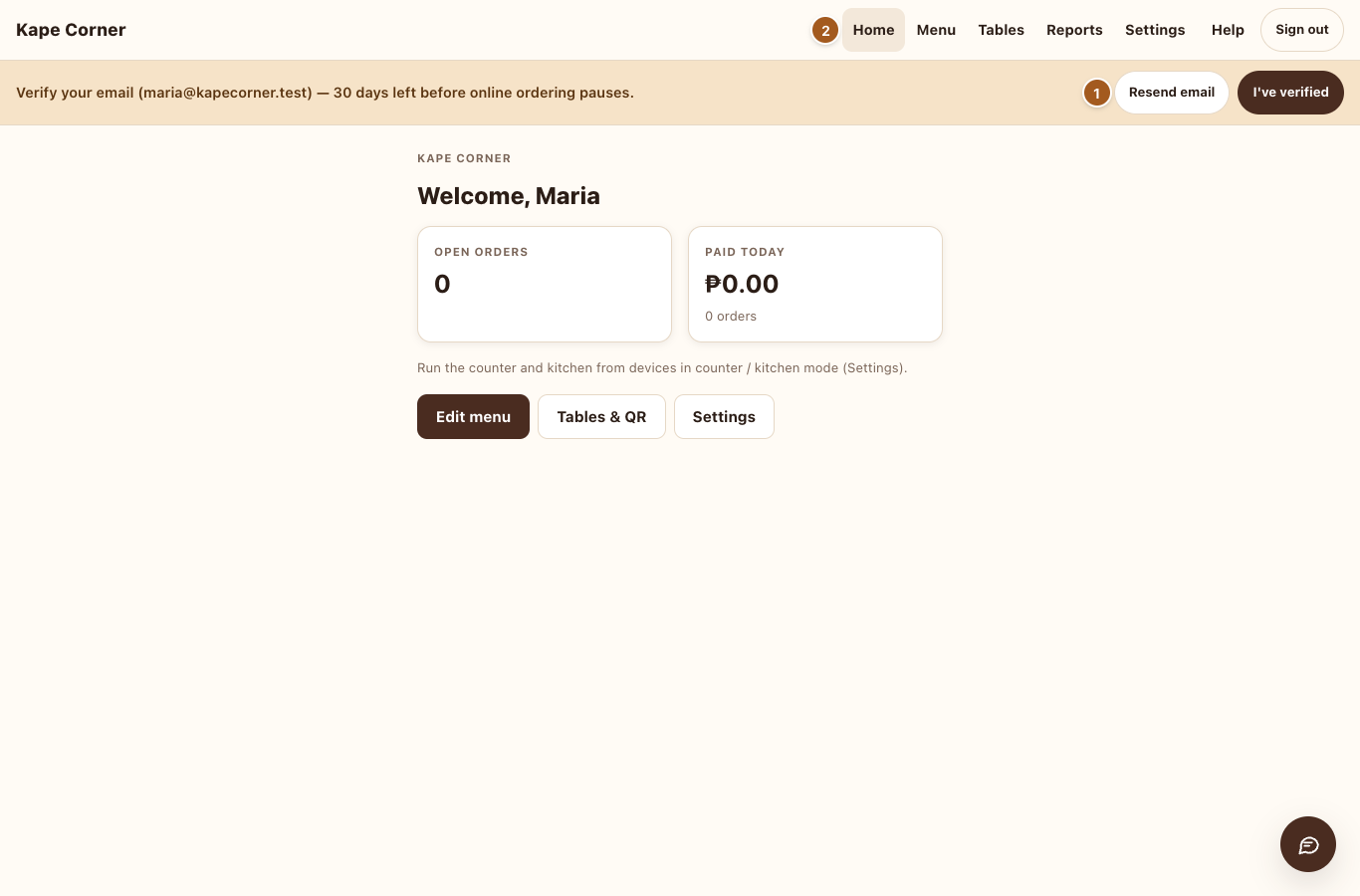
- Open the link we emailed you. You have 30 days; after that, guests can't order until you do. Lost the email? Resend email.
- The top bar takes you everywhere: Home, Menu, Tables, Reports, Settings. Help opens this guide.
2 · Your menu
Group your items into categories (Hot Coffee, Pastries…). Guests see them in this order.
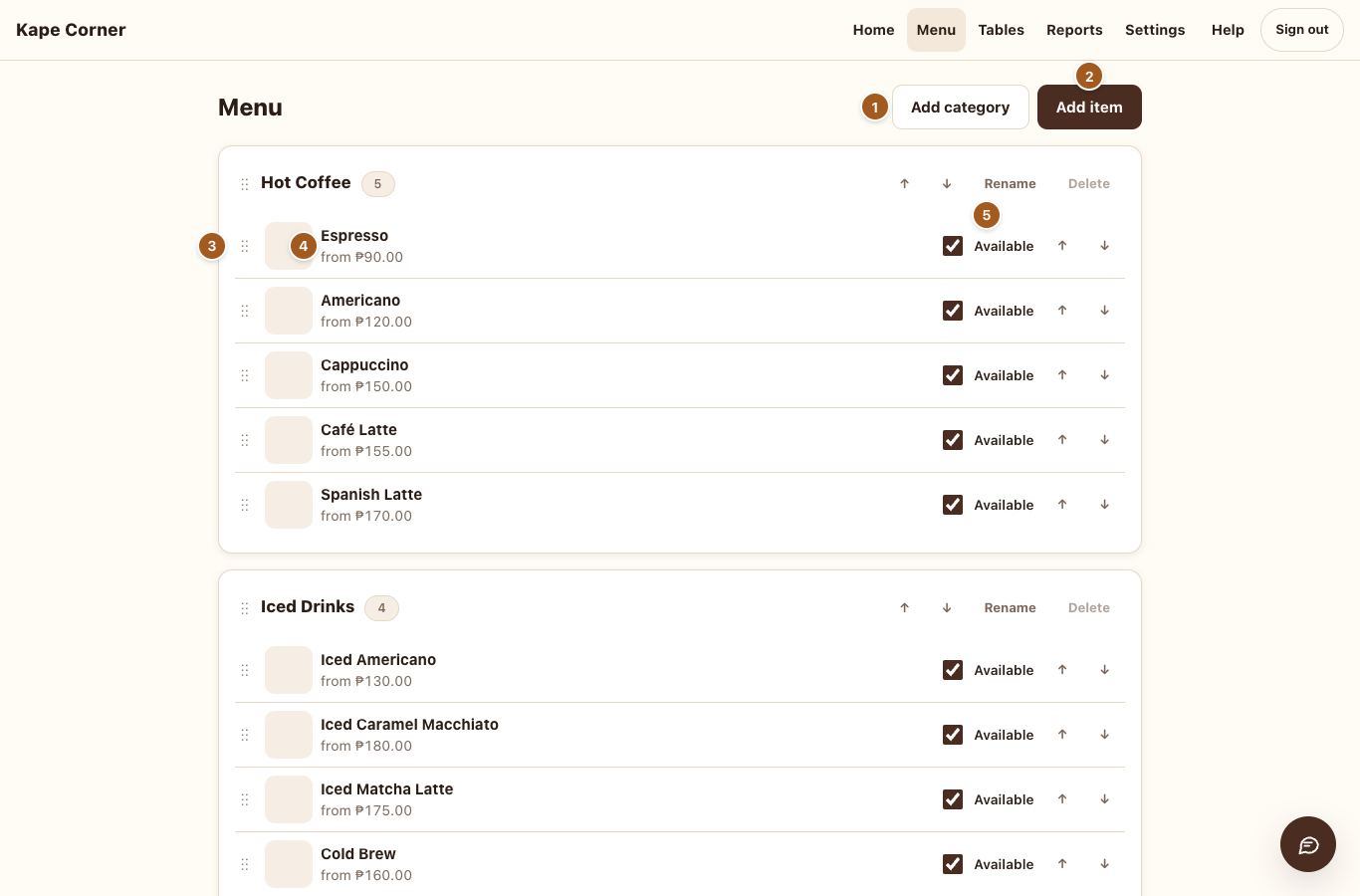
- Add category — add one before your first item.
- Add item — a new dish or drink.
- Drag the ⋮⋮ handle to move an item (or use ↑ ↓).
- Tap an item to change it.
- Available — untick when it's sold out; guests see “Sold out”. You can also do this from the counter.
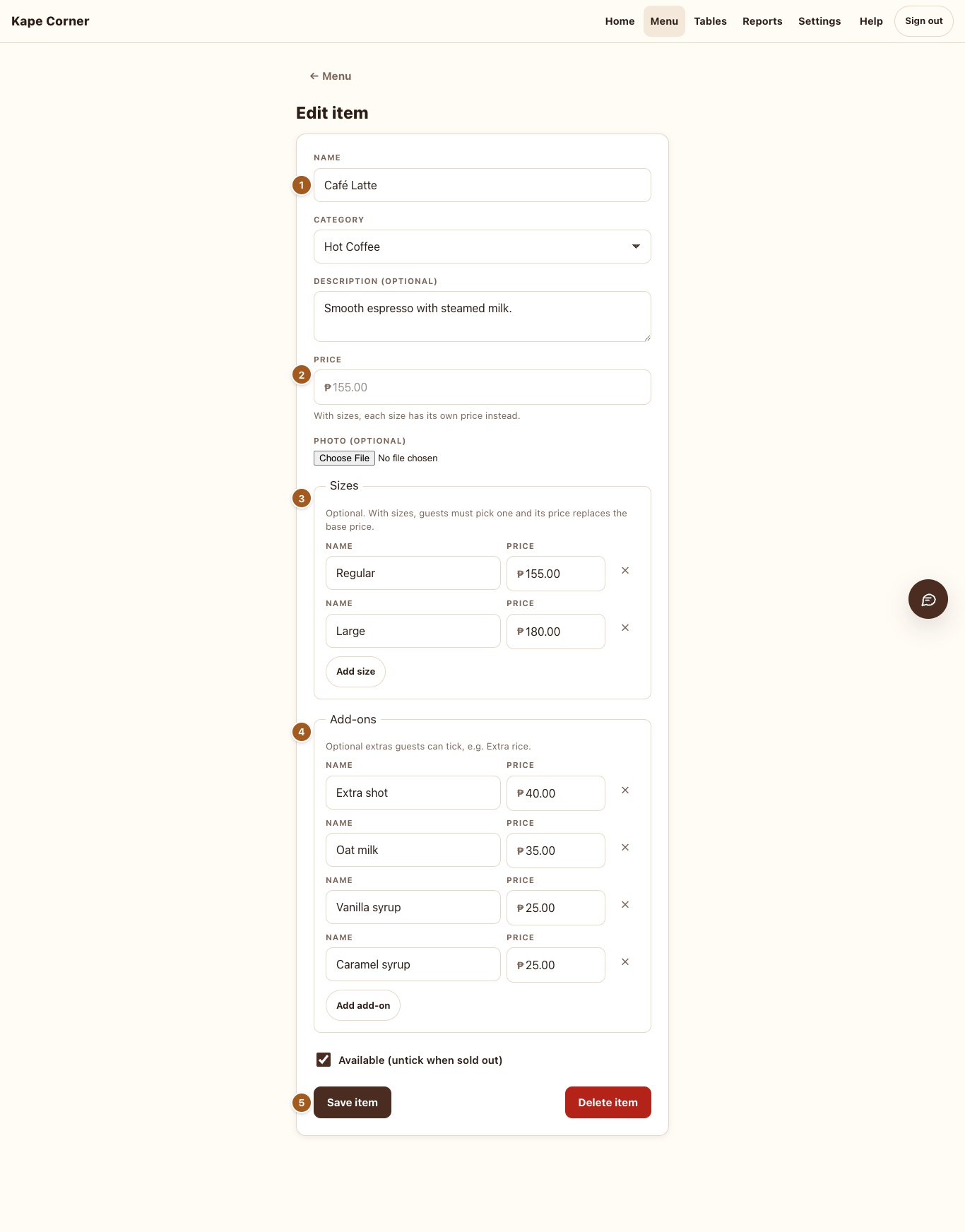
- Name, category, a short description and an optional photo.
- Price — with sizes, each size has its own price instead.
- Sizes — e.g. Regular / Large. Guests must pick one.
- Add-ons — extras guests can tick, like Oat milk or Extra rice.
- Save item.
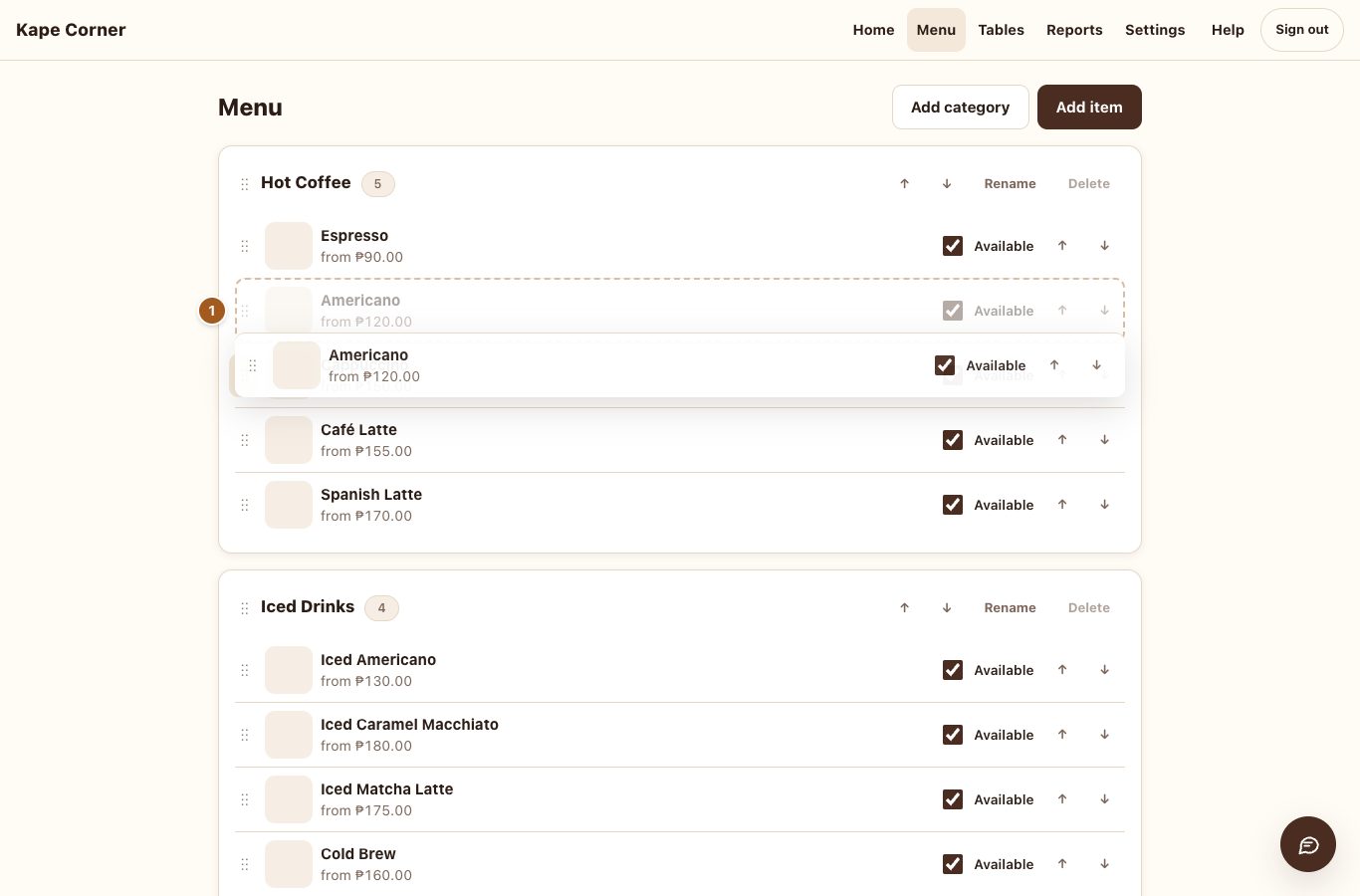
- Hold the handle and drag. Items can move to another category too; categories move the same way.
3 · Tables & QR codes
Every table gets its own QR card. Guests scan it and their order arrives with the table's name. There's also one counter QR for take-out and orders placed at the counter.
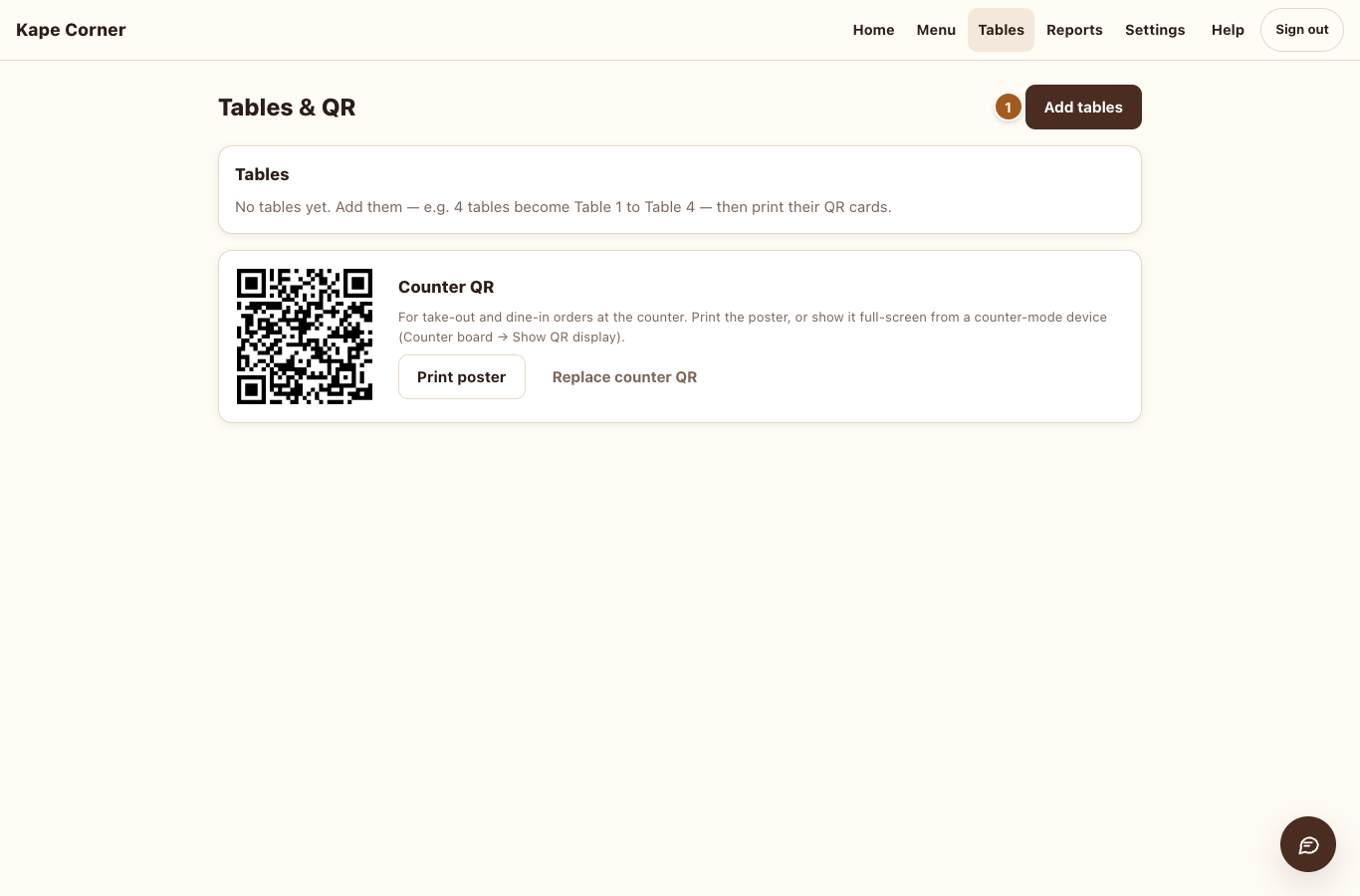
- Add tables — say how many (up to 50 at once). They're called Table 1, Table 2… and you can rename them.
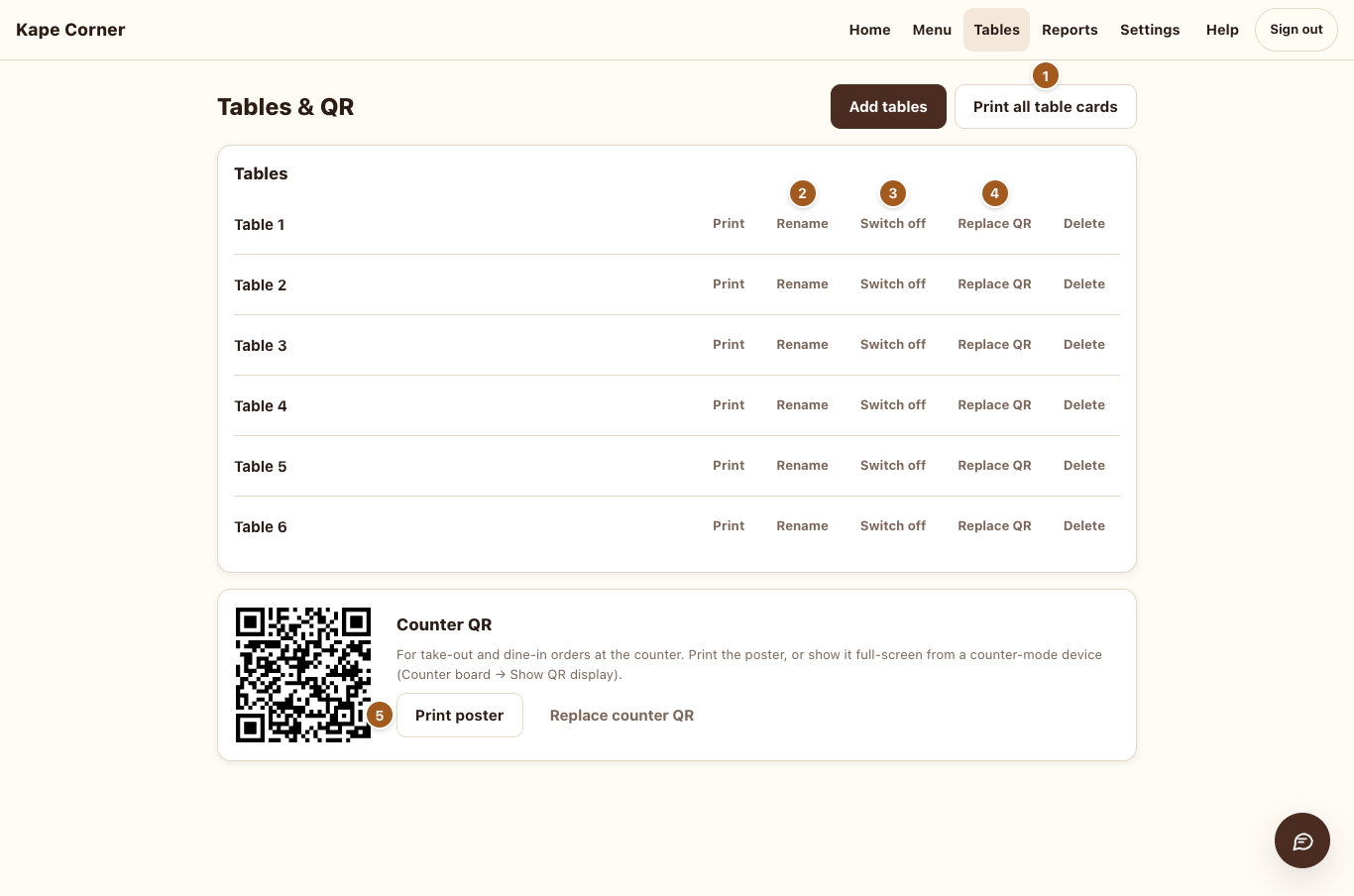
- Print all table cards — six to an A4 page.
- Rename — e.g. “Terrace 1”.
- Switch off — guests can't order from that table until you switch it on.
- Replace QR — if a card is lost or copied. The old card stops working at once; print the new one.
- Print poster — the counter QR, for take-out guests.
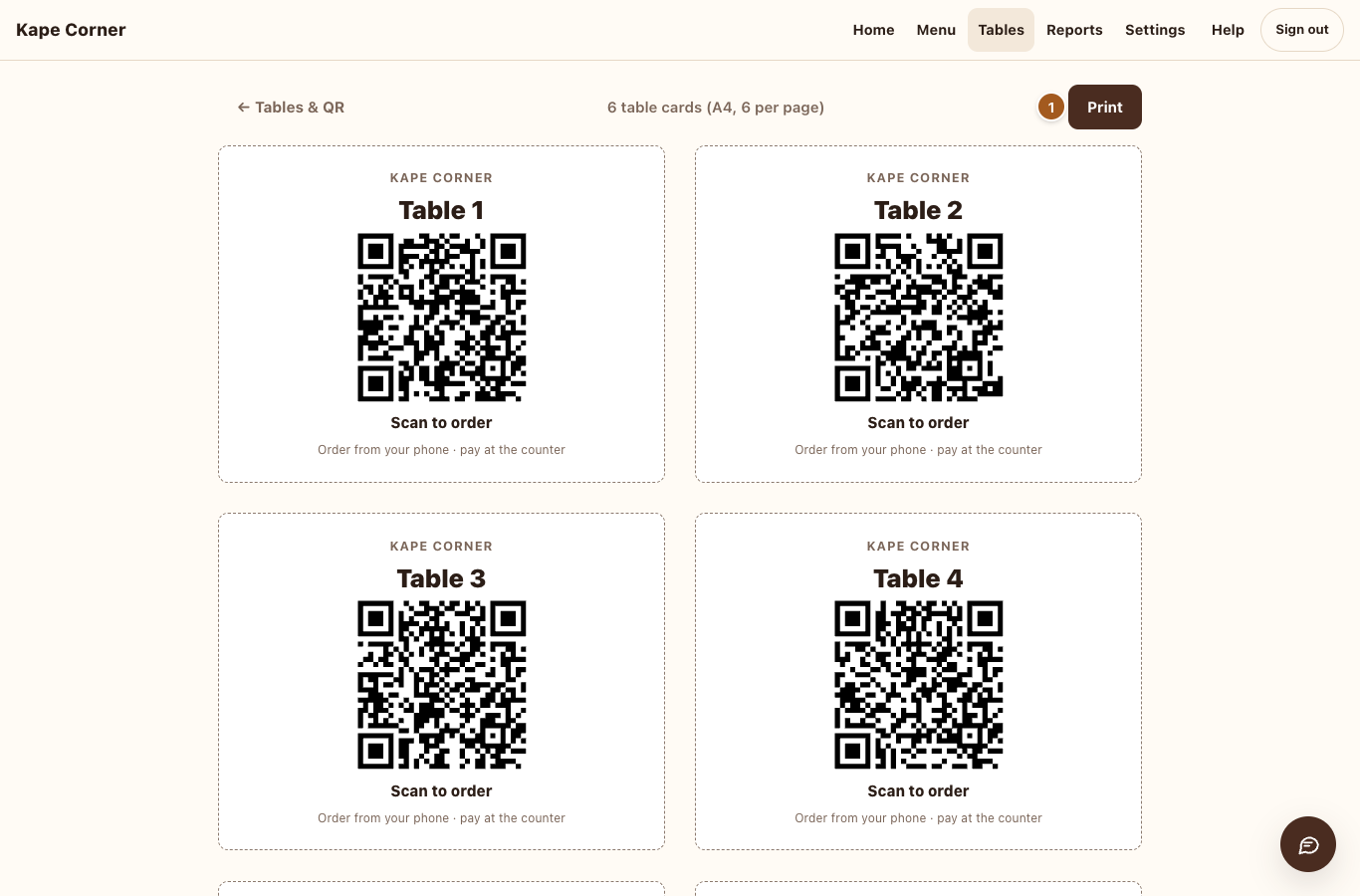
- Print. Cut along the dotted lines and put each card on its table.
4 · Settings & devices
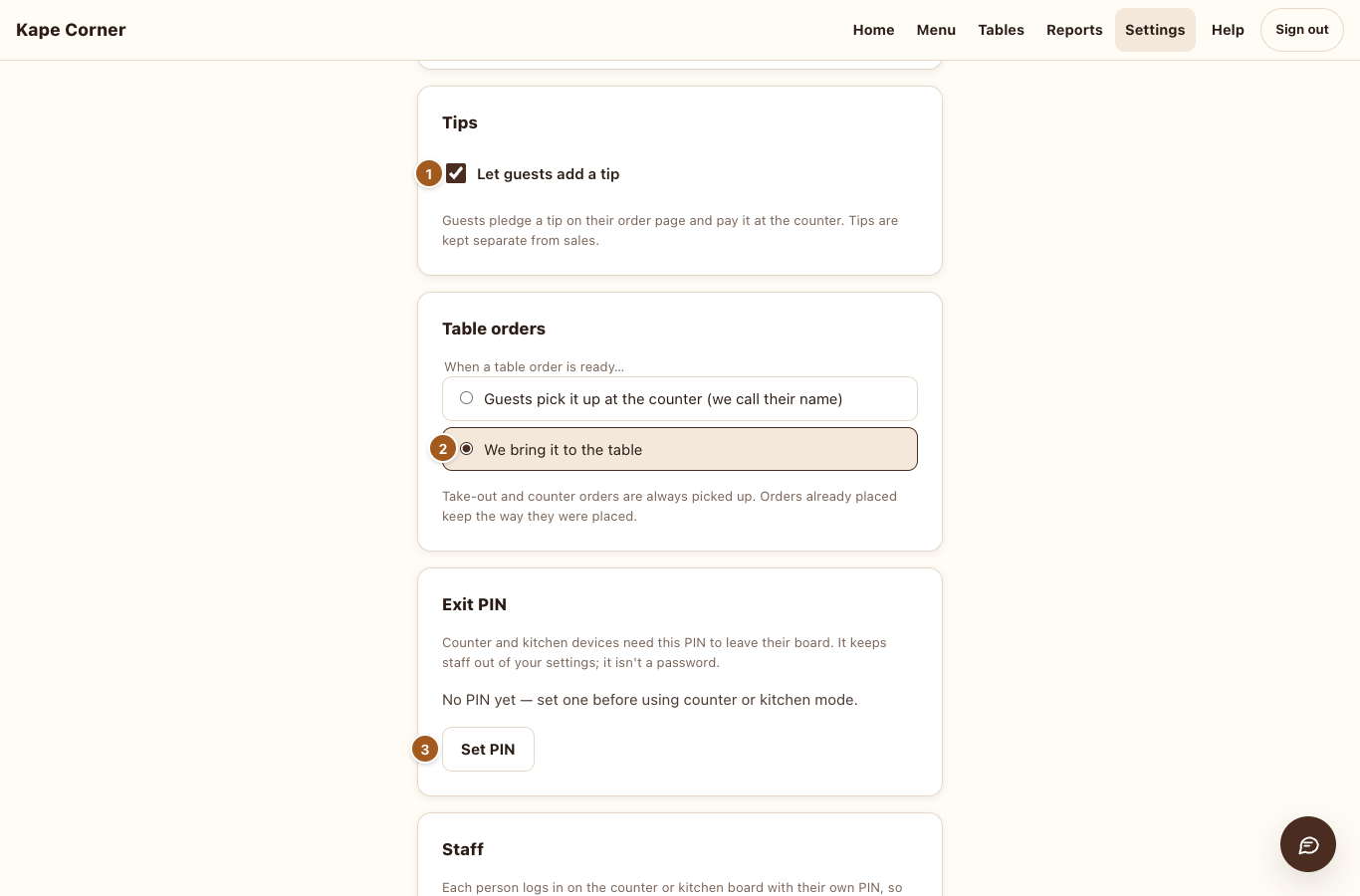
- Tips — let guests add a tip on their order page; they pay it at the counter. Tips are kept apart from sales.
- Table orders — do guests pick up at the counter (you call their name), or do you bring it to the table?
- Set PIN — the owner PIN that locks counter and kitchen devices. Set it before using them.
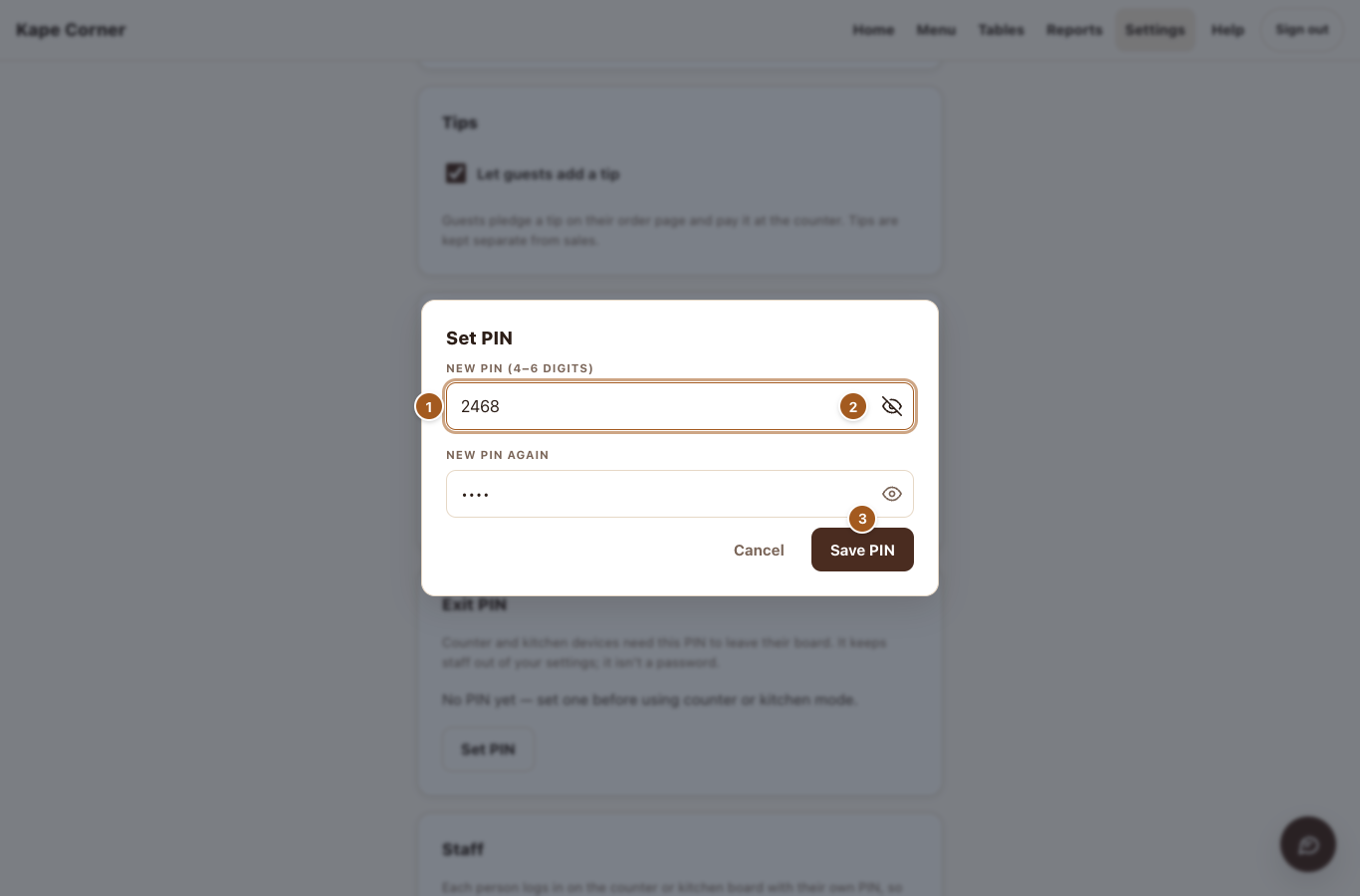
- Type 4–6 digits, then again below.
- The eye shows what you typed.
- Save PIN. Keep it to yourself — it isn't a password, it just keeps staff out of your settings.
Set up a counter tablet
Any tablet or phone signed in to your account can become the counter or the kitchen. It then shows only its board until you leave with your PIN.
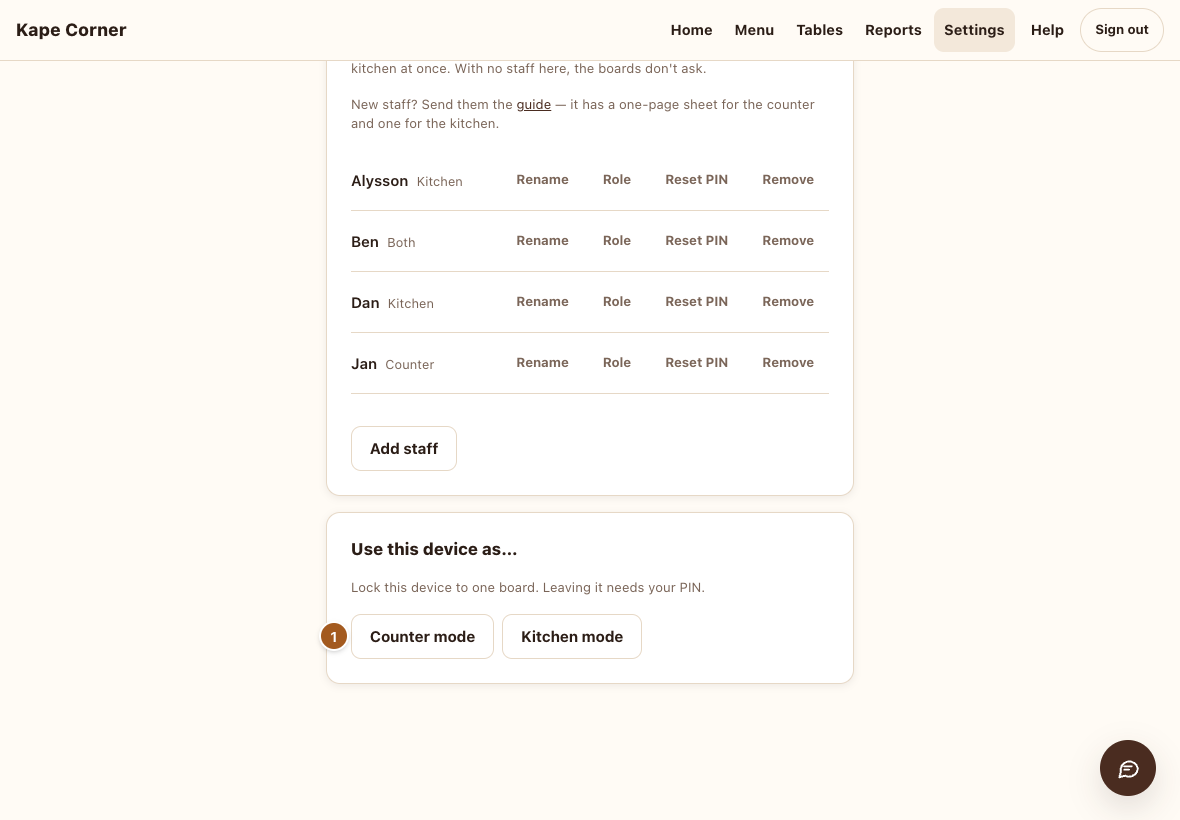
- Settings → Counter mode (or Kitchen mode), then confirm.
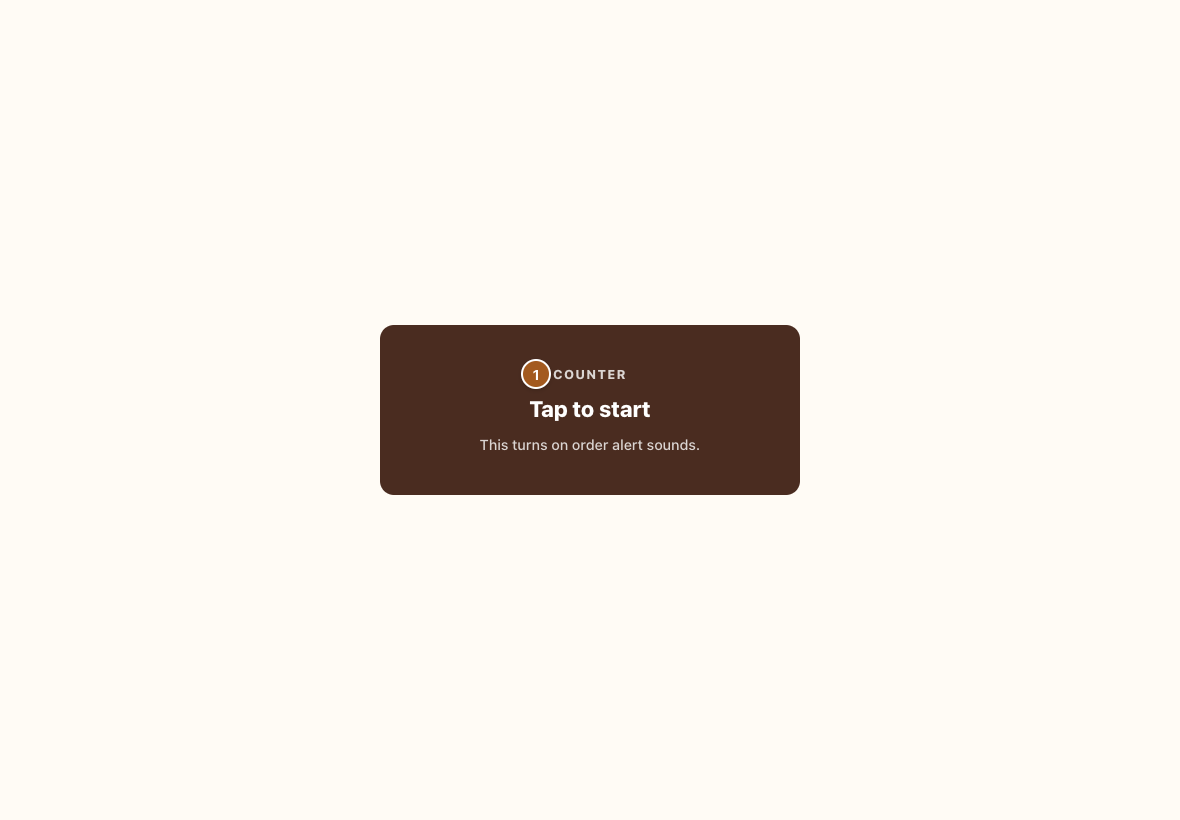
- Tap once — this turns on the order alert sound.
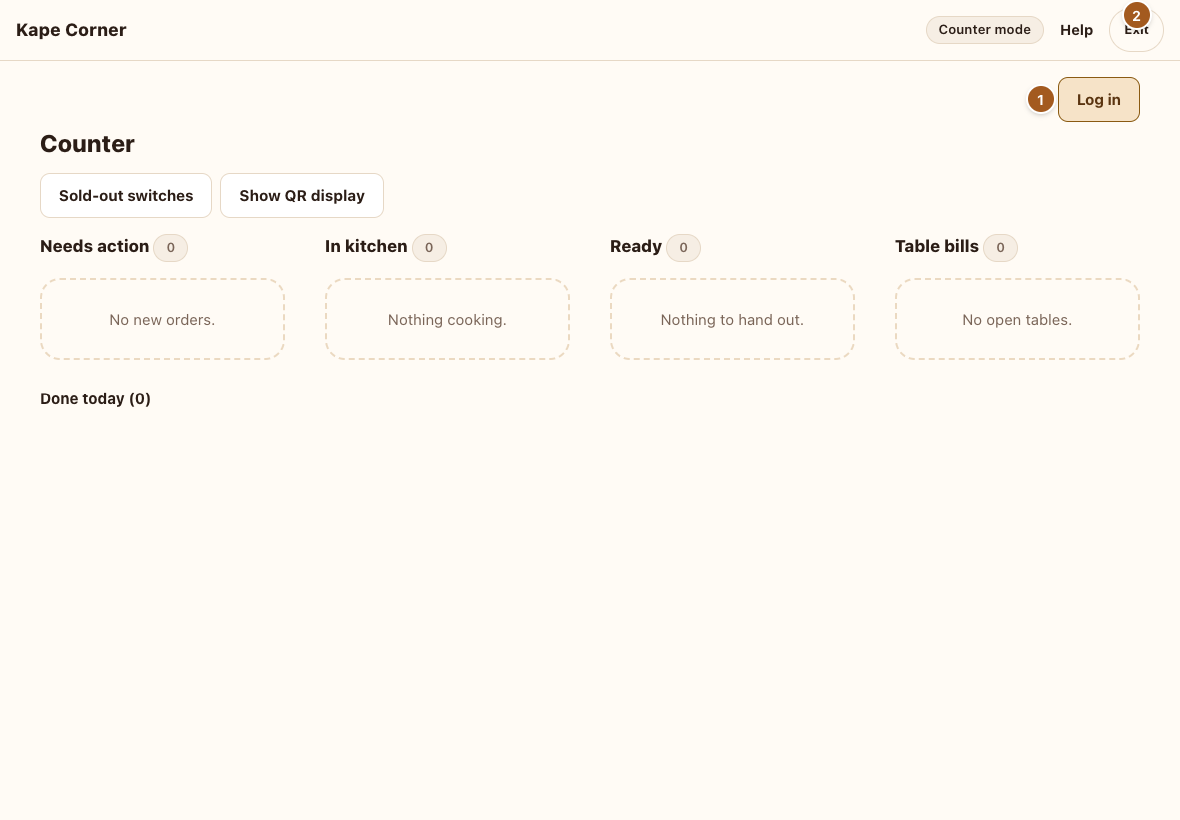
- Staff Log in here (see Part 2).
- Exit asks for your PIN.
5 · Your staff
Give each person their own name and PIN. They log in on the counter or kitchen board, and every action in the log shows who did it.
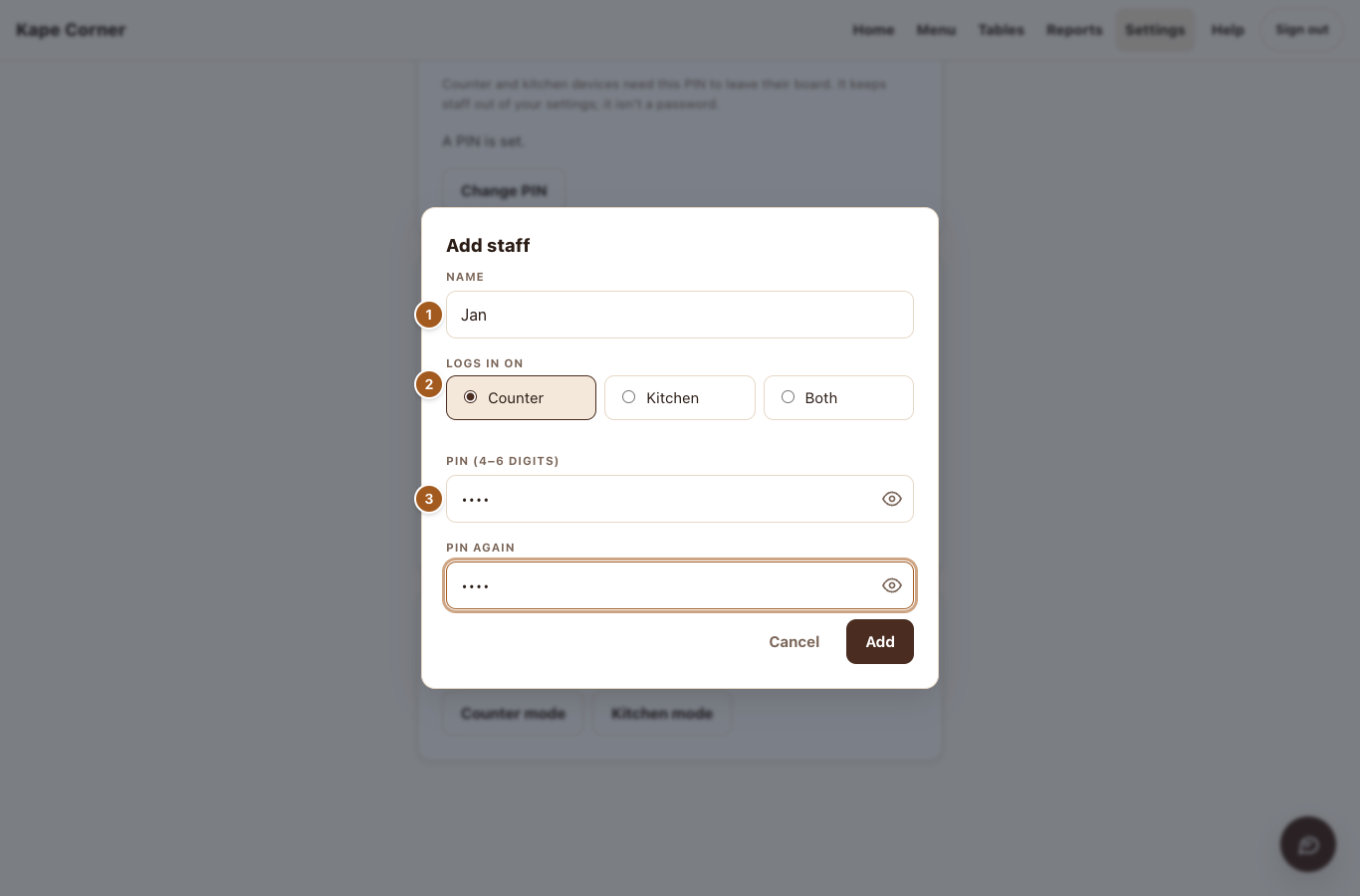
- Their name as you'll see it in the log.
- Where they log in: Counter, Kitchen or Both.
- Their PIN (4–6 digits). Tell them; they can't see it later.
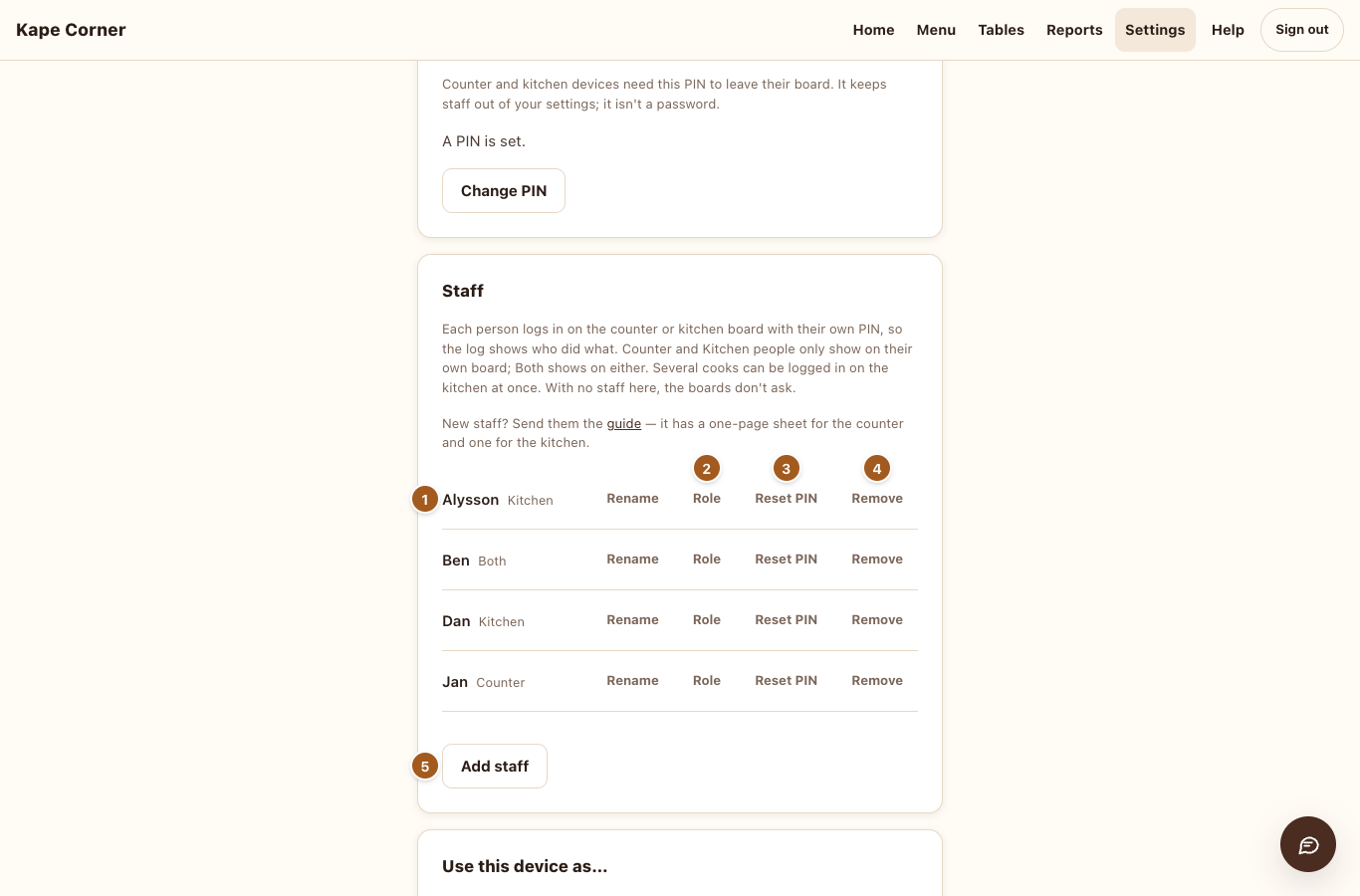
- Each person and where they log in.
- Role — change Counter / Kitchen / Both.
- Reset PIN — when someone forgets theirs.
- Remove — they can't log in any more; their name stays on what they did.
- Add staff.
No staff added? The boards simply don't ask anyone to log in.
6 · Your home screen
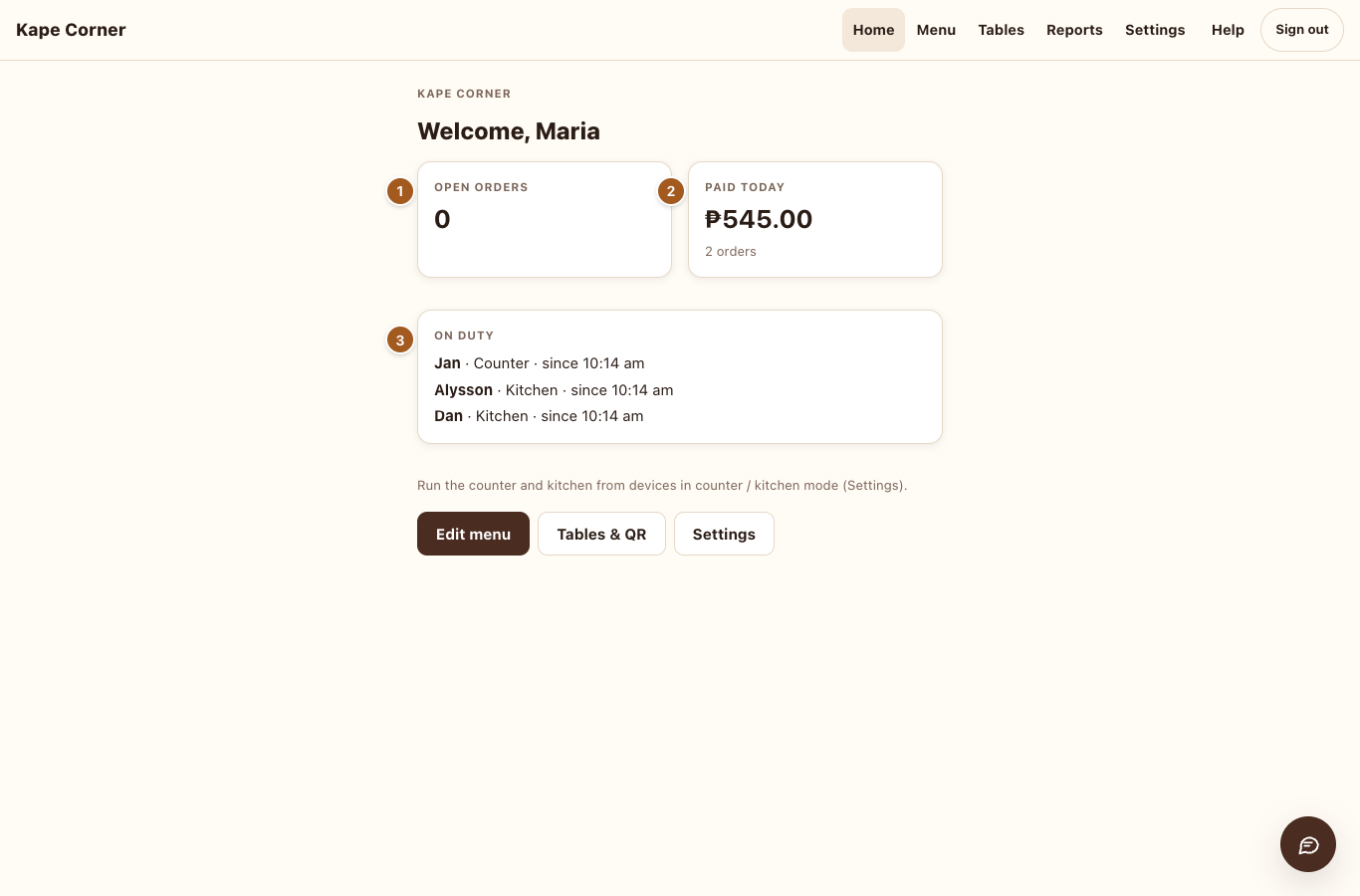
- Open orders — orders not finished yet, live.
- Paid today — money taken today and how many orders.
- On duty — who is logged in on the counter and kitchen right now, and who was on earlier today.
Have an idea or a problem? Tap the chat button in the bottom-right corner of any owner screen to send it to The QR Bistro team — or email support@theqrbistro.com.
7 · How a guest orders
Guests don't need an app or an account. They scan the QR with their phone camera.
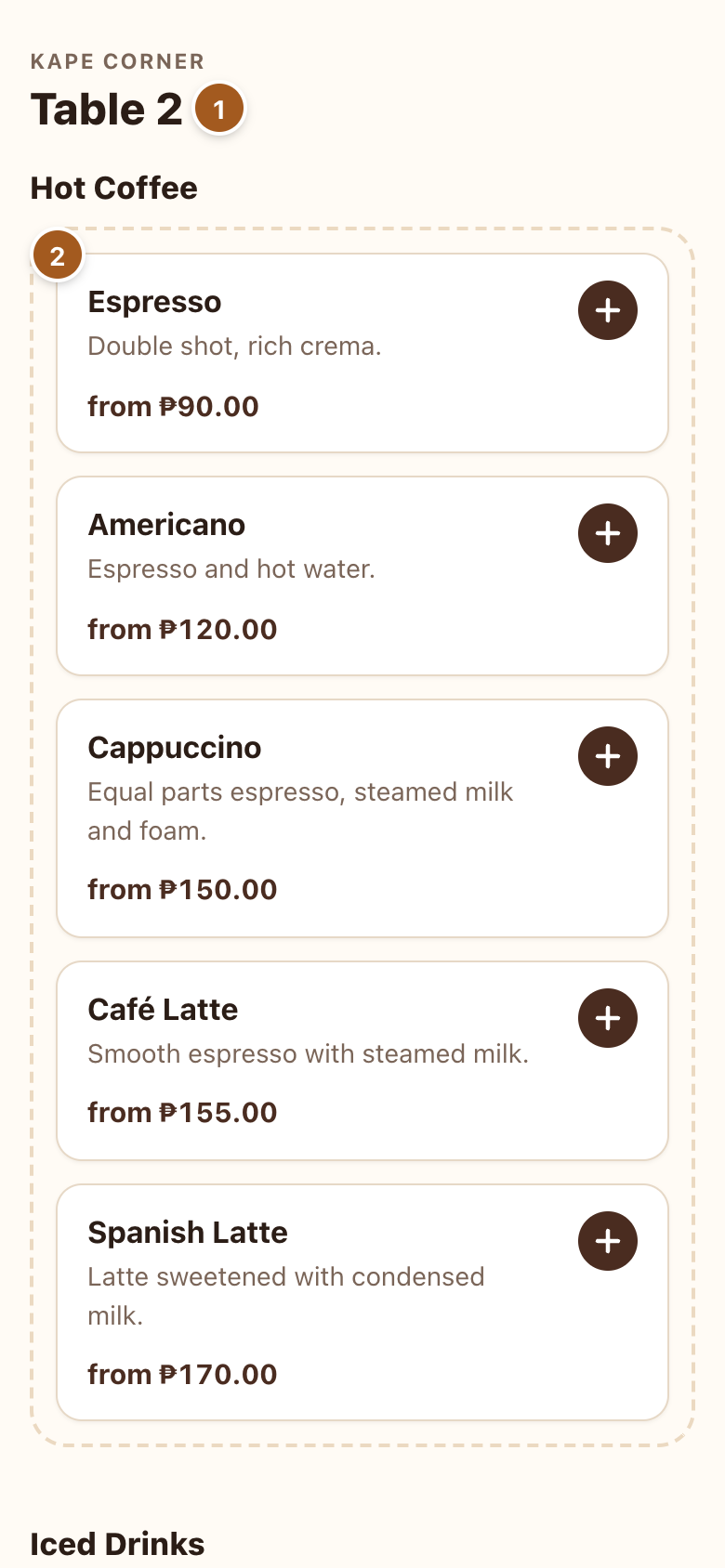
- The menu knows the table.
- Tap an item.
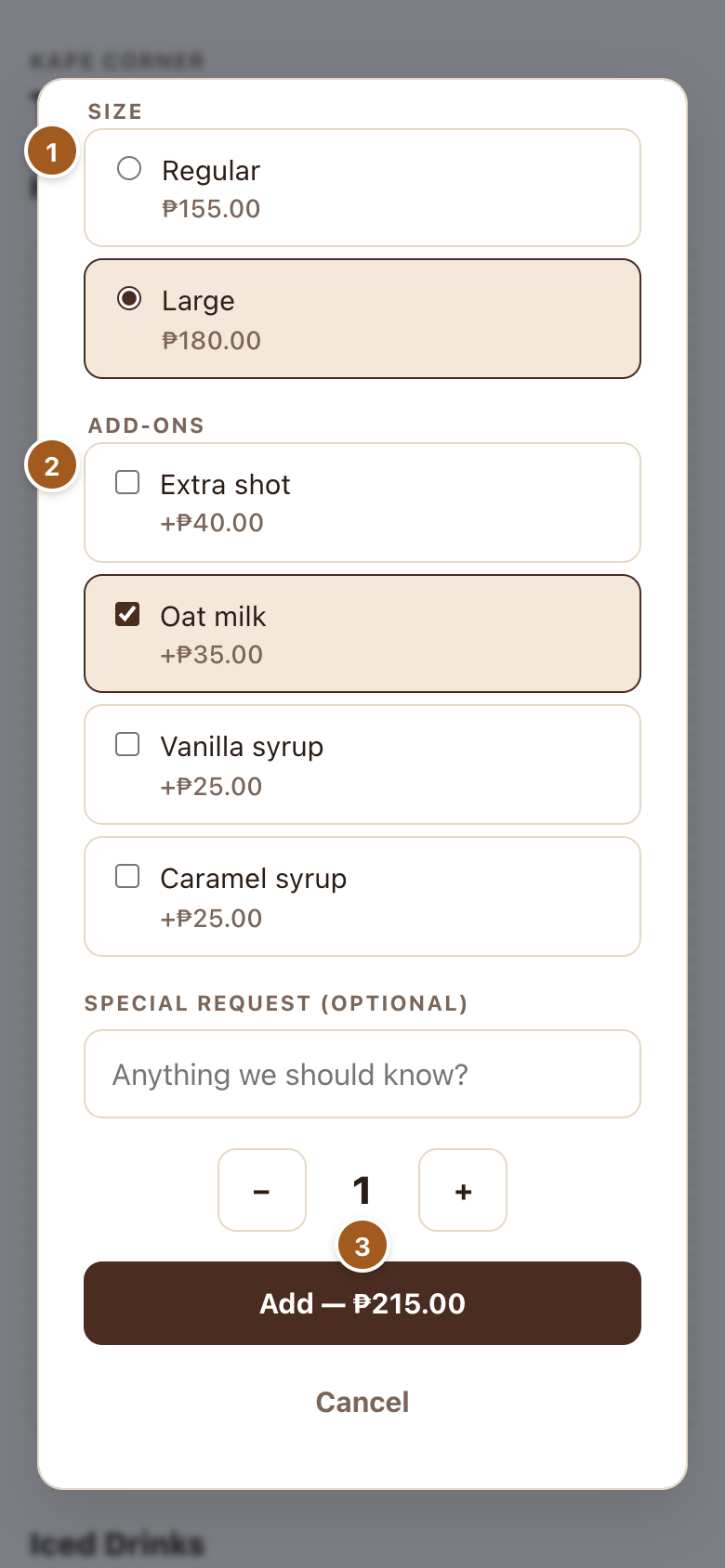
- Pick a size.
- Tick add-ons.
- Add to the order.
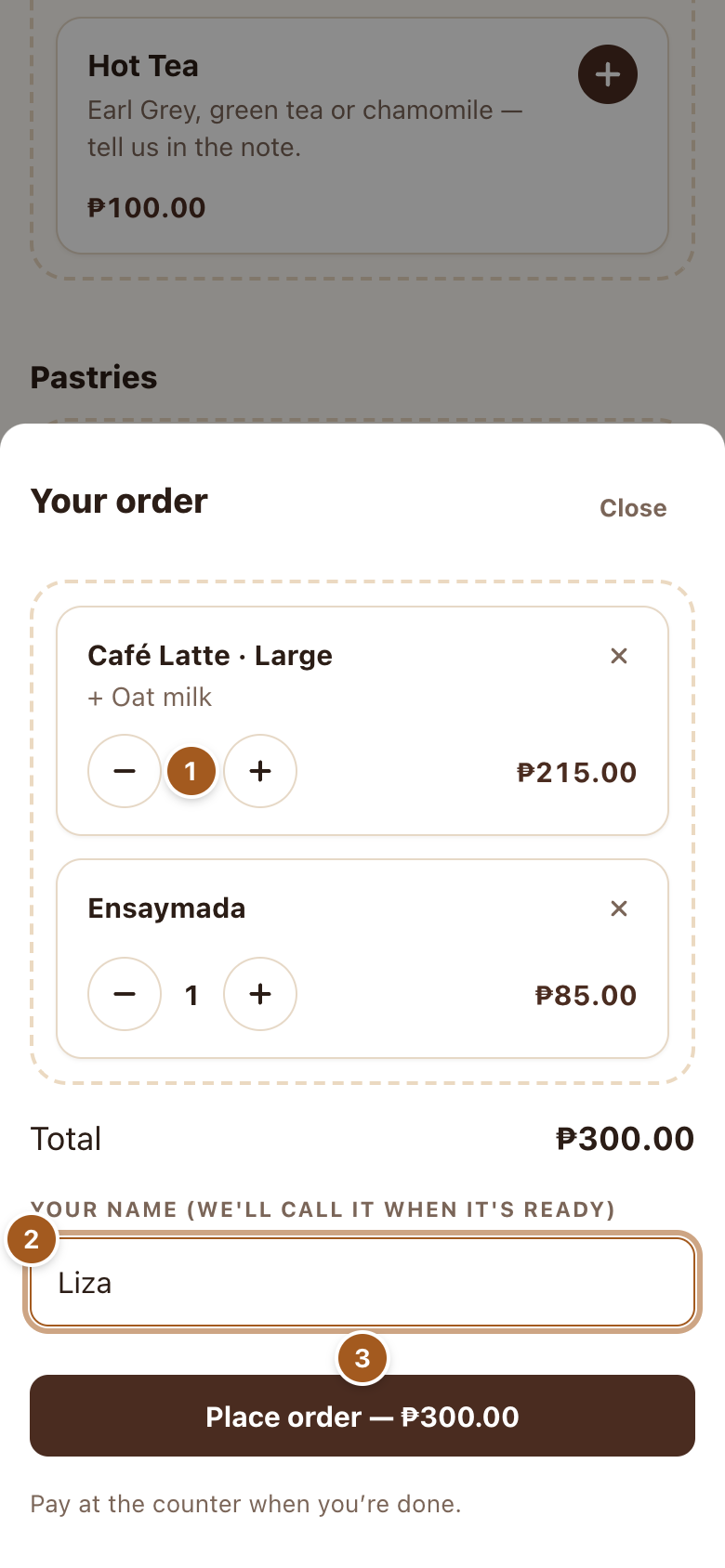
- Change how many.
- Their name — you'll call it, and it shows on the boards.
- Place order.
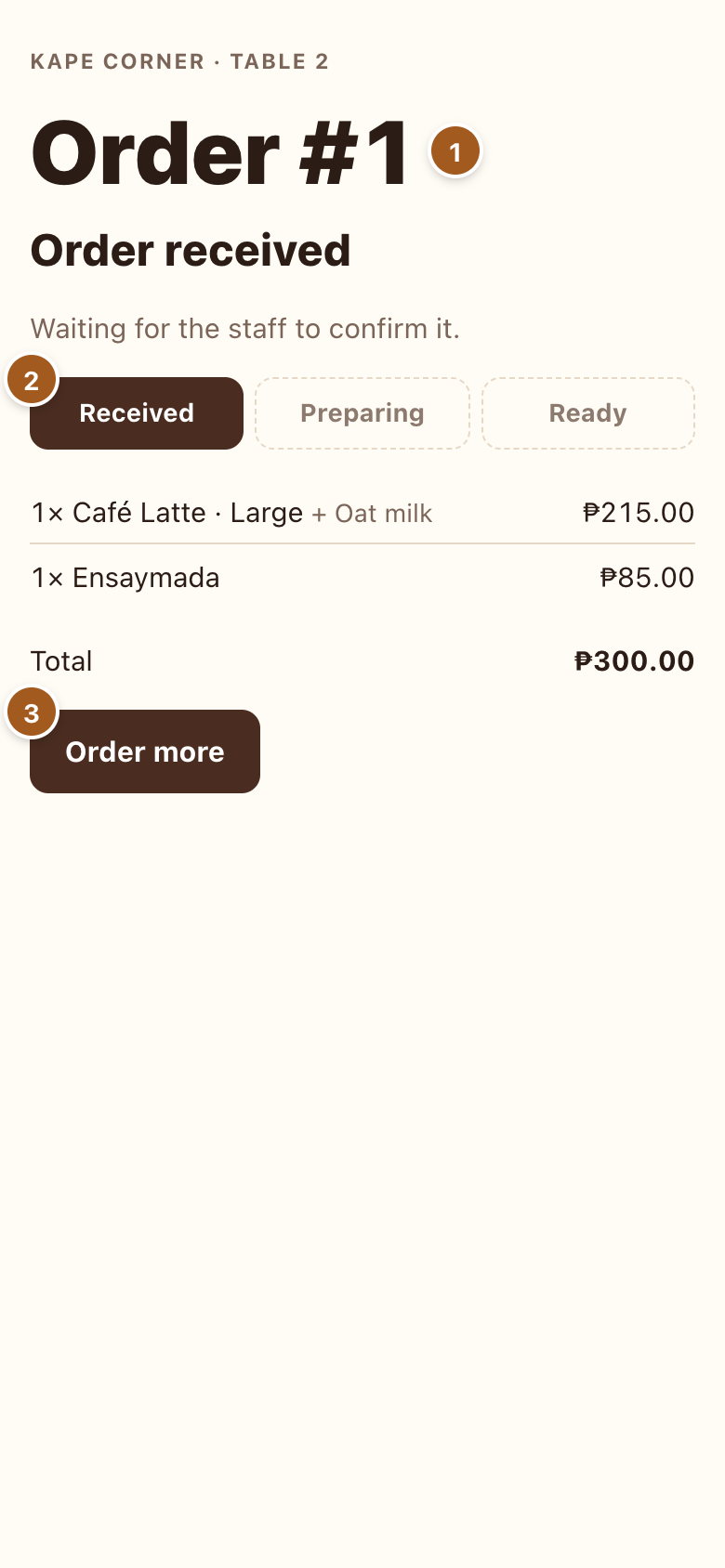
- Their order number.
- Live progress: Received → Preparing → Ready.
- Order more — added to the same table bill.
Table orders wait for the counter to Accept them (so nobody can order for a table they're not at). Counter orders are paid first. Guests can add a tip, and at a table they can tap Ask for the bill when they're ready to pay.
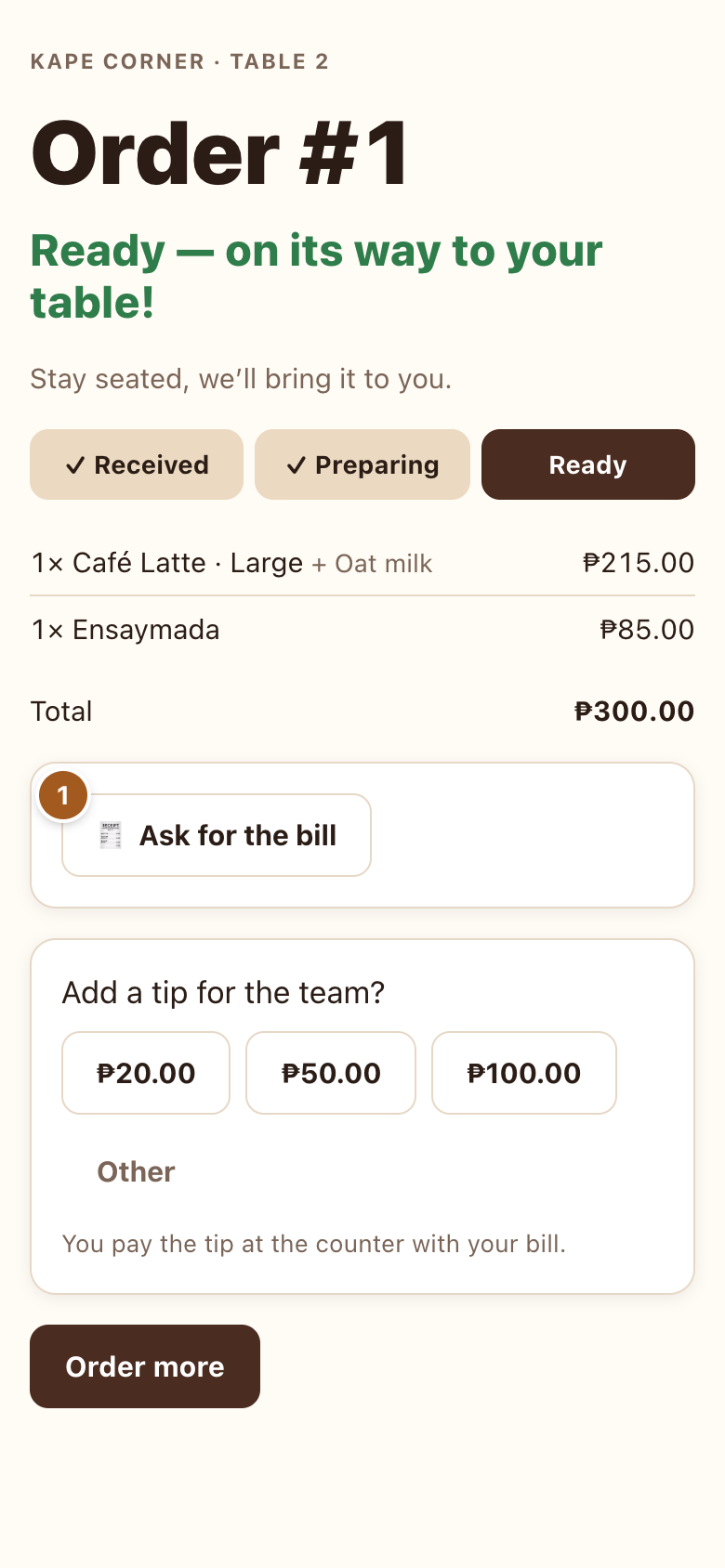
- Ask for the bill — the counter's tablet lights up and chimes.
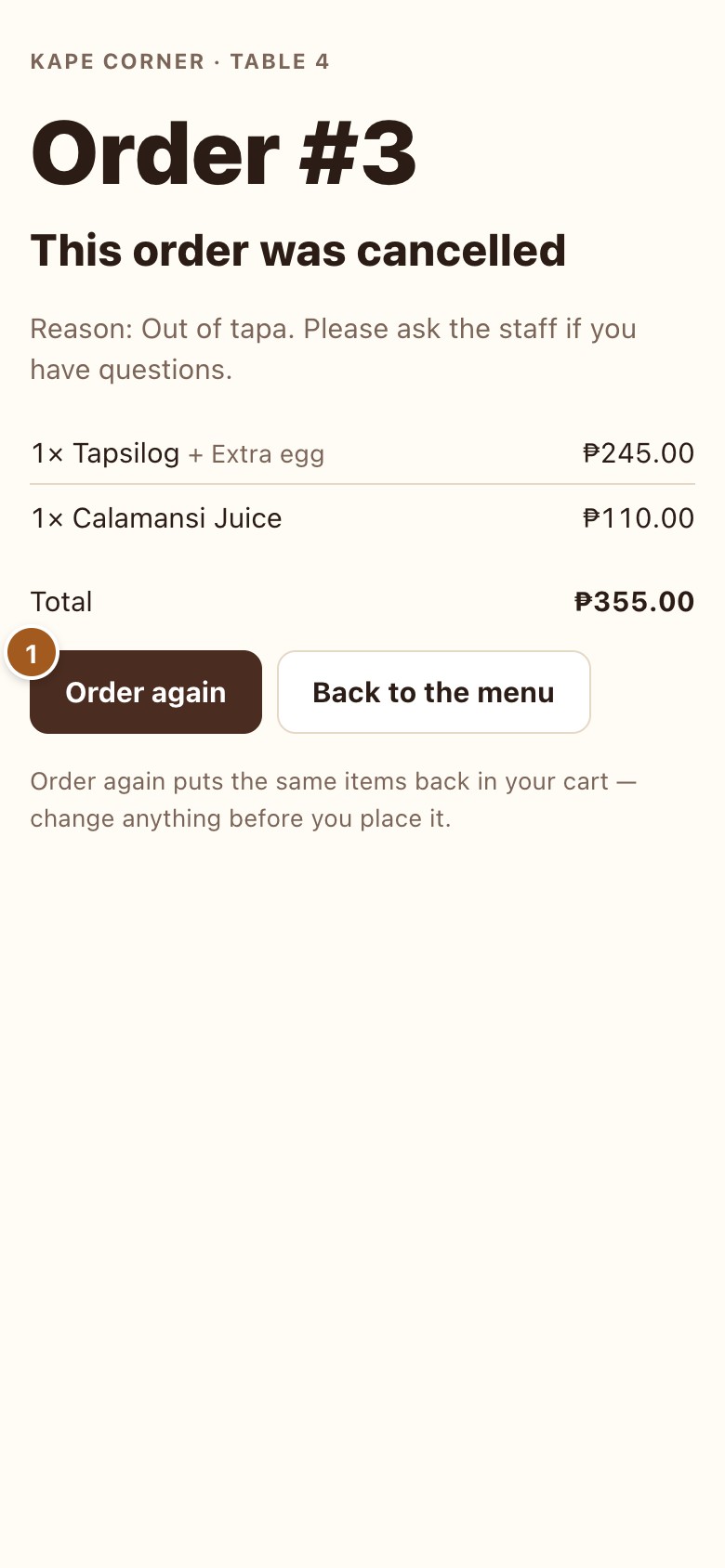
- If you cancel an order, the guest sees why and can Order again.
8 · Reports
Reports has two tabs: Log (everything that happened, minute by minute) and Month (how the month went).
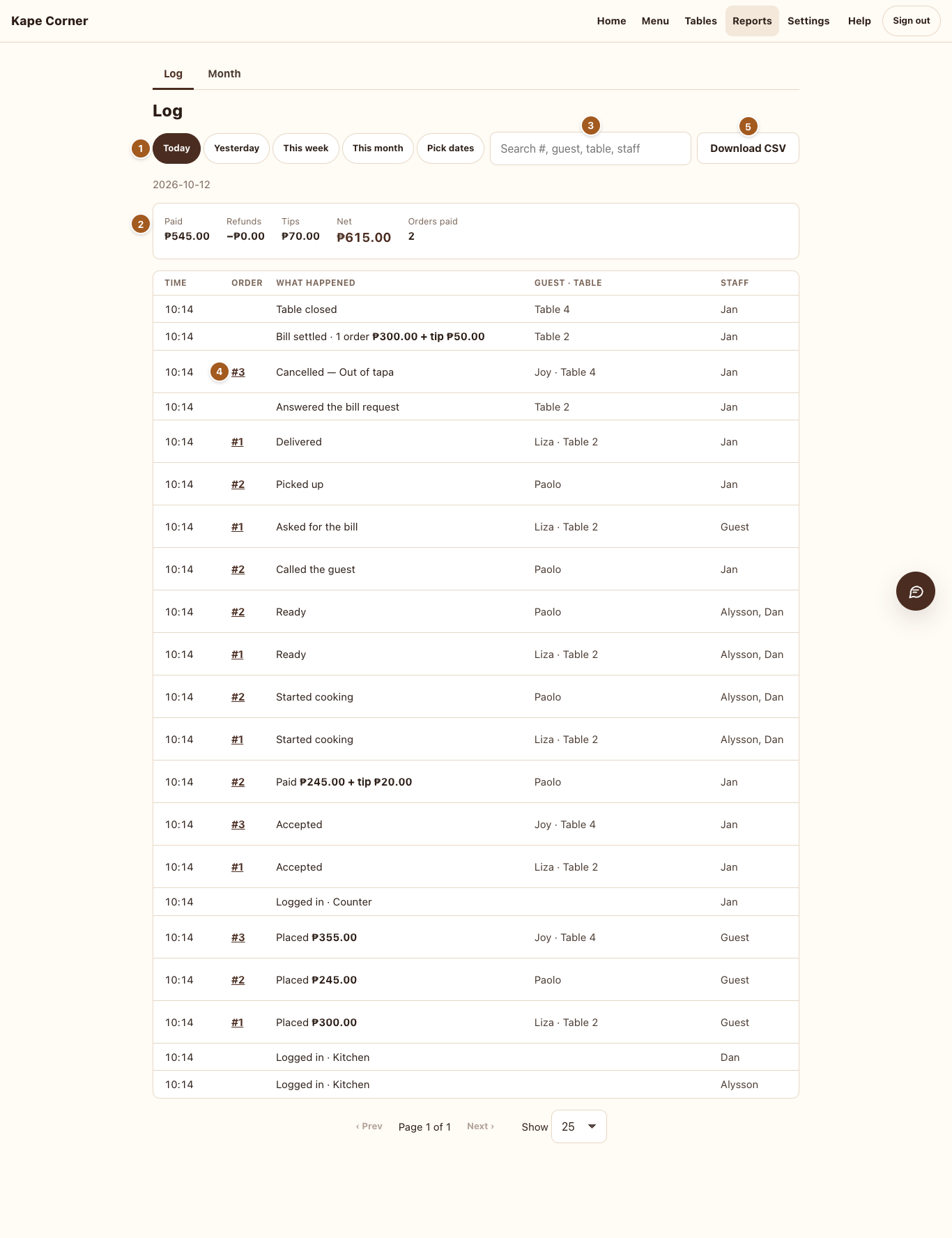
- Pick the days: Today (updates live), Yesterday, This week, This month, or your own dates.
- The totals — use them for the end-of-day cash count. Money counts on the day it was paid; refunds on the day of the cancel.
- Search an order number, a guest, a table or a staff name. Searching a name shows that person's totals.
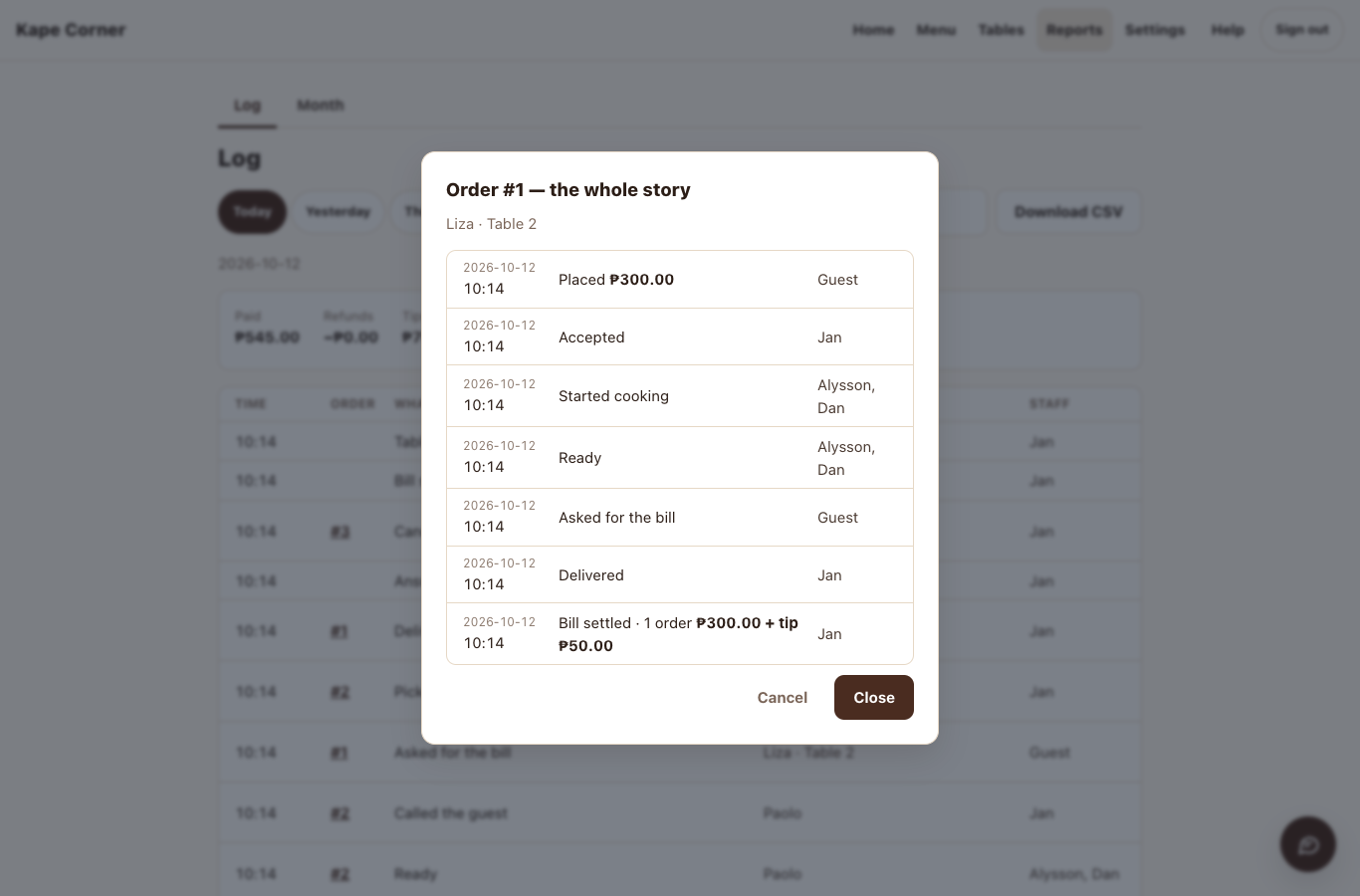
- Tap an order number for its whole story.
- Download CSV — opens in Excel or Google Sheets.
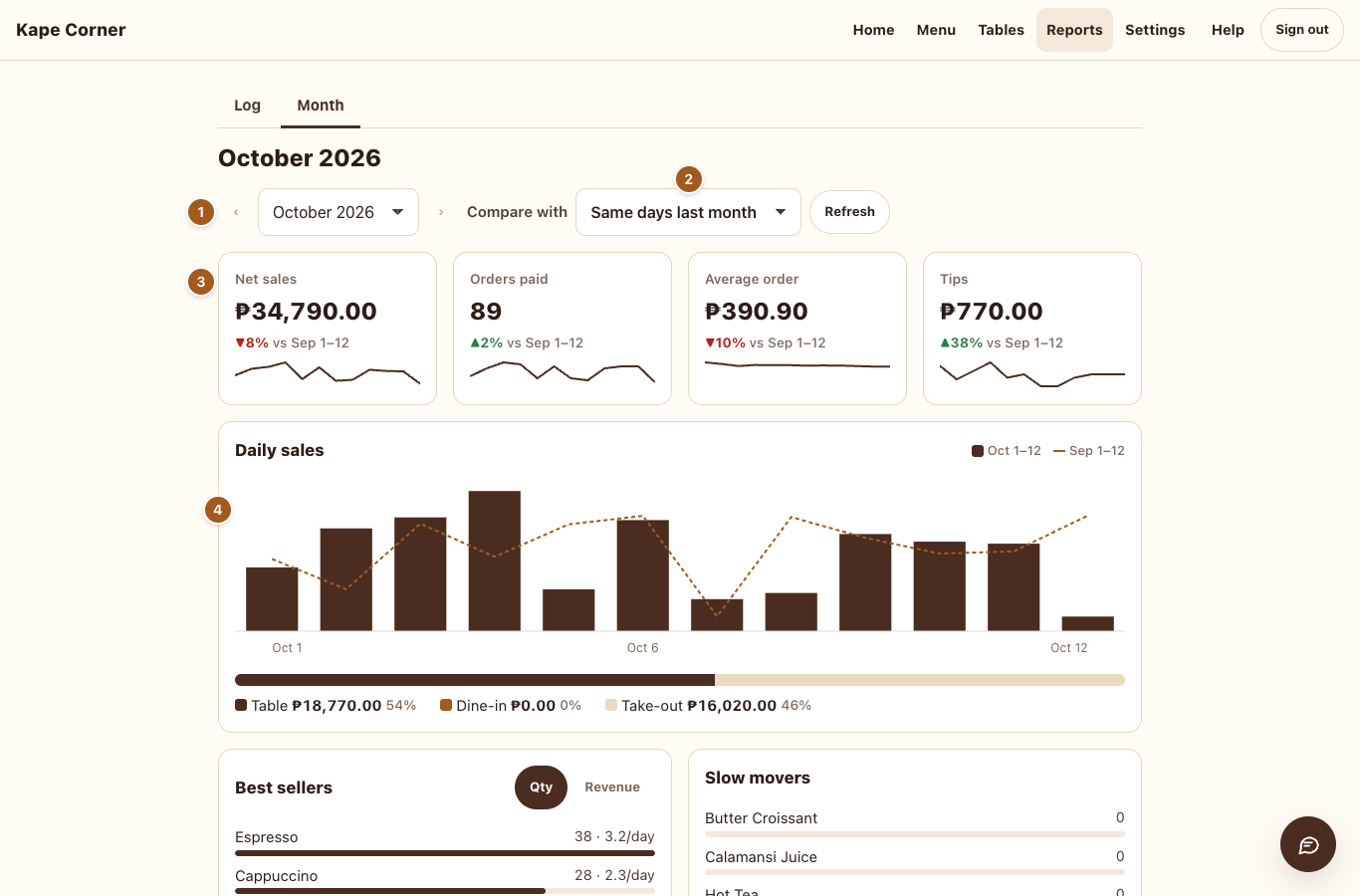
- Pick the month.
- Compare with the same days last month (fair mid-month), the whole last month, or any month.
- Net sales, orders paid, average order and tips, with ▲▼ against the comparison.
- Sales per day; the dashed line is the comparison.
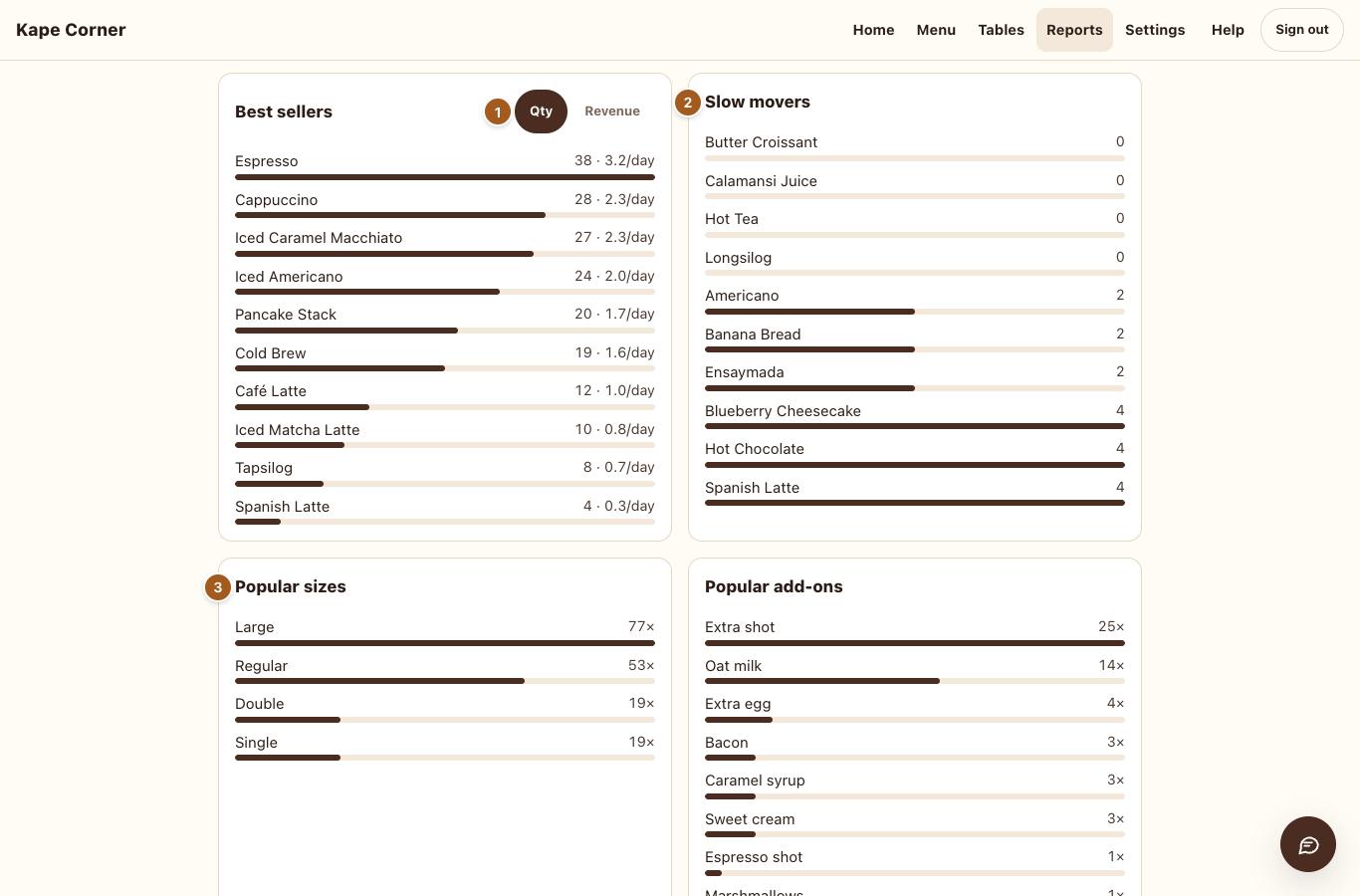
- Best sellers by quantity or revenue, with how many per day.
- Slow movers — including items that didn't sell at all.
- Popular sizes and add-ons.
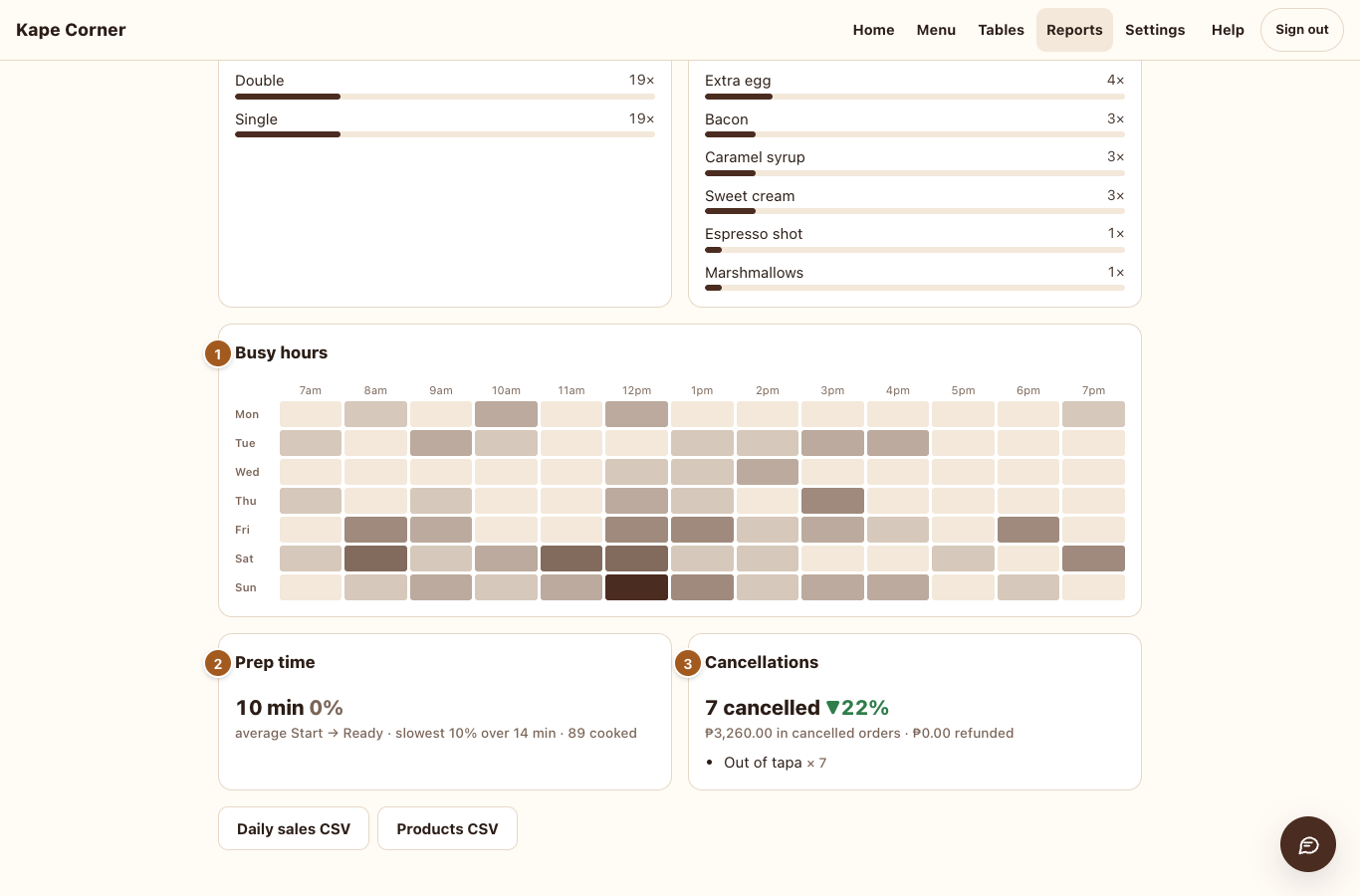
- Busy hours — darker means more orders. Plan your staff around it.
- Prep time — the kitchen's average from Start to Ready.
- Cancellations and their reasons.
At the bottom: Daily sales CSV and Products CSV for your books.
Part 2 For staff
Working the counter
The counter tablet shows every order. New orders beep. Work from left to right: Needs action → In kitchen → Ready → Table bills.
- Log in: tap Log in, your name, your PIN. Log out (tap your name) when your shift ends — so your name isn't on the next person's work.
- New table order: Accept — check the guest is really at that table.
- New counter order: when the guest pays, Mark paid (type a tip if they gave one). It goes to the kitchen.
- Ready: a table order → take it over, Delivered. A counter order → Call, then Picked up. Wrong tap? Undo within 5 seconds.
- 🧾 Wants the bill (moves to the top, chimes): On my way. When they pay: Settle bill, type the tip received, Paid — close the bill.
- Cancel: always give a reason — the guest and the kitchen see it. If it was paid, refund the amount shown.
- An item ran out? Sold-out switches at the top of the board.
- Leaving counter mode needs the owner's PIN (Exit).
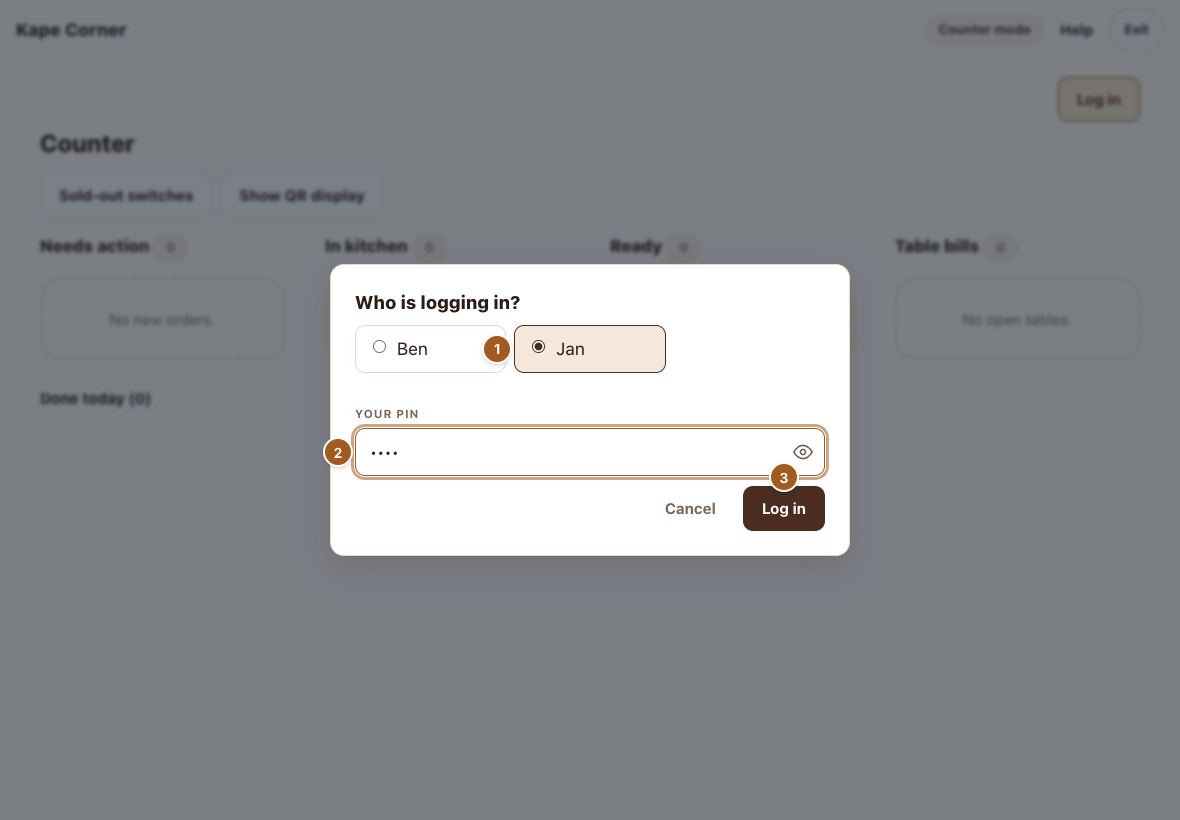
- Tap Log in, then your name.
- Your PIN.
- Log in. Tap your name to log out when your shift ends — so your name isn't on the next person's work.
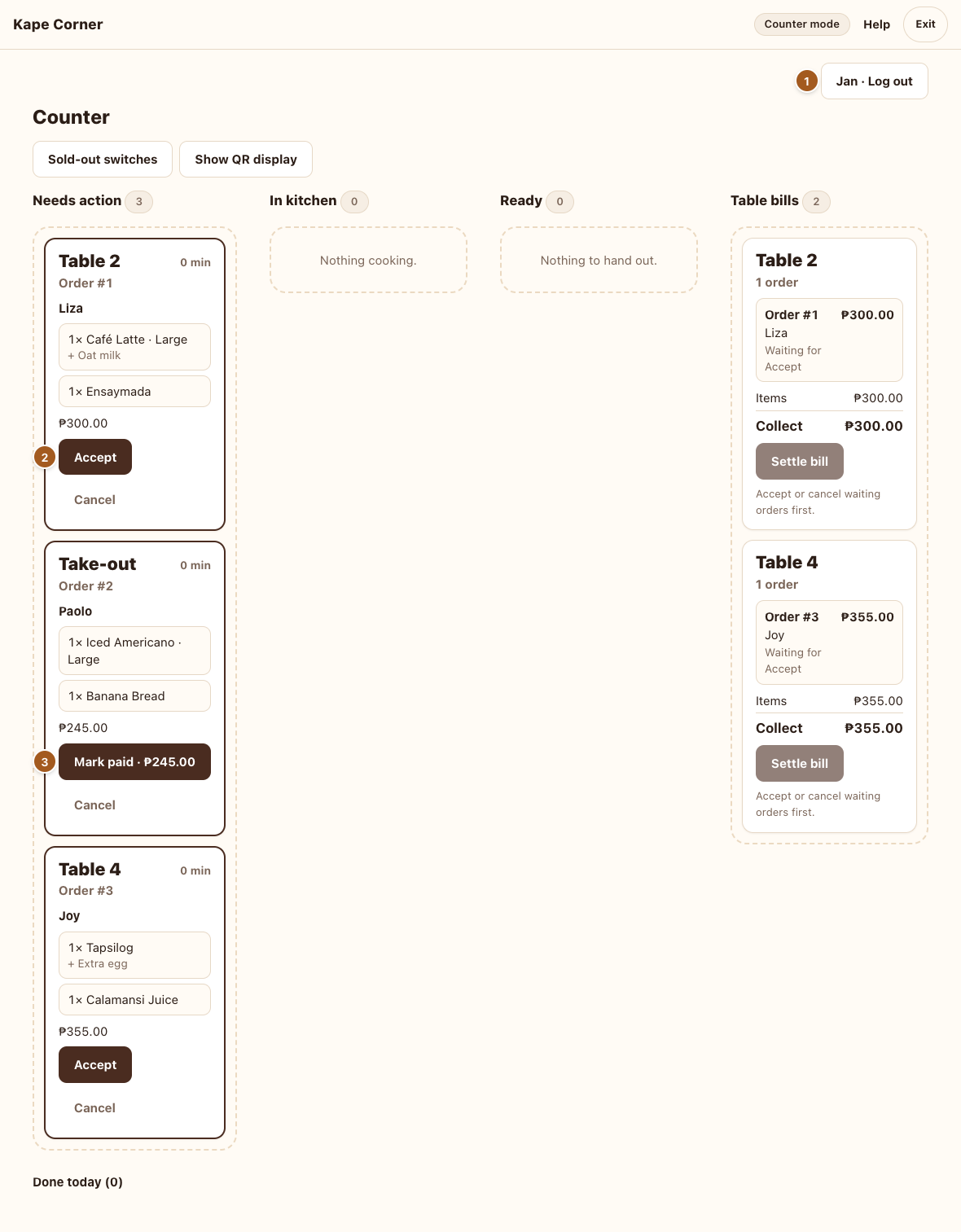
- Who's logged in.
- Accept a table order — check the guest is really at that table.
- Mark paid a counter order when the guest pays.
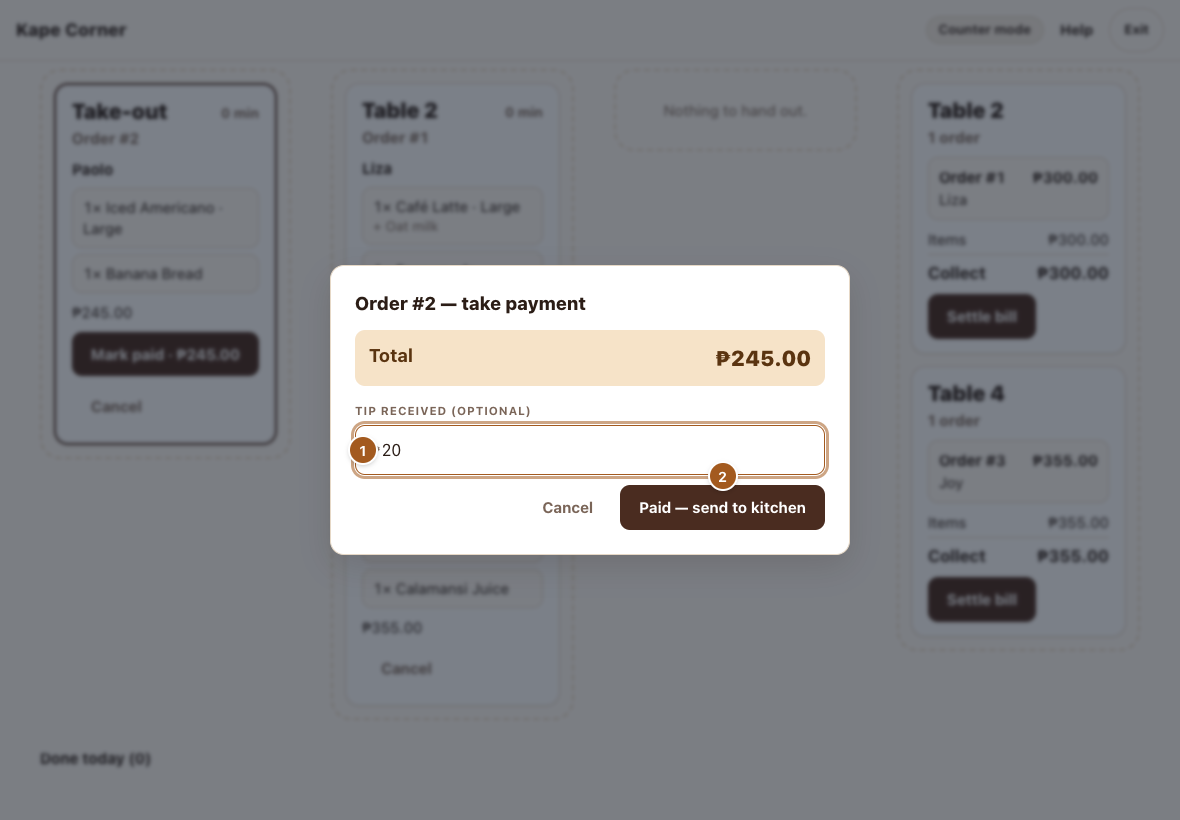
- Type a tip if they gave one (optional).
- Paid — send to kitchen.
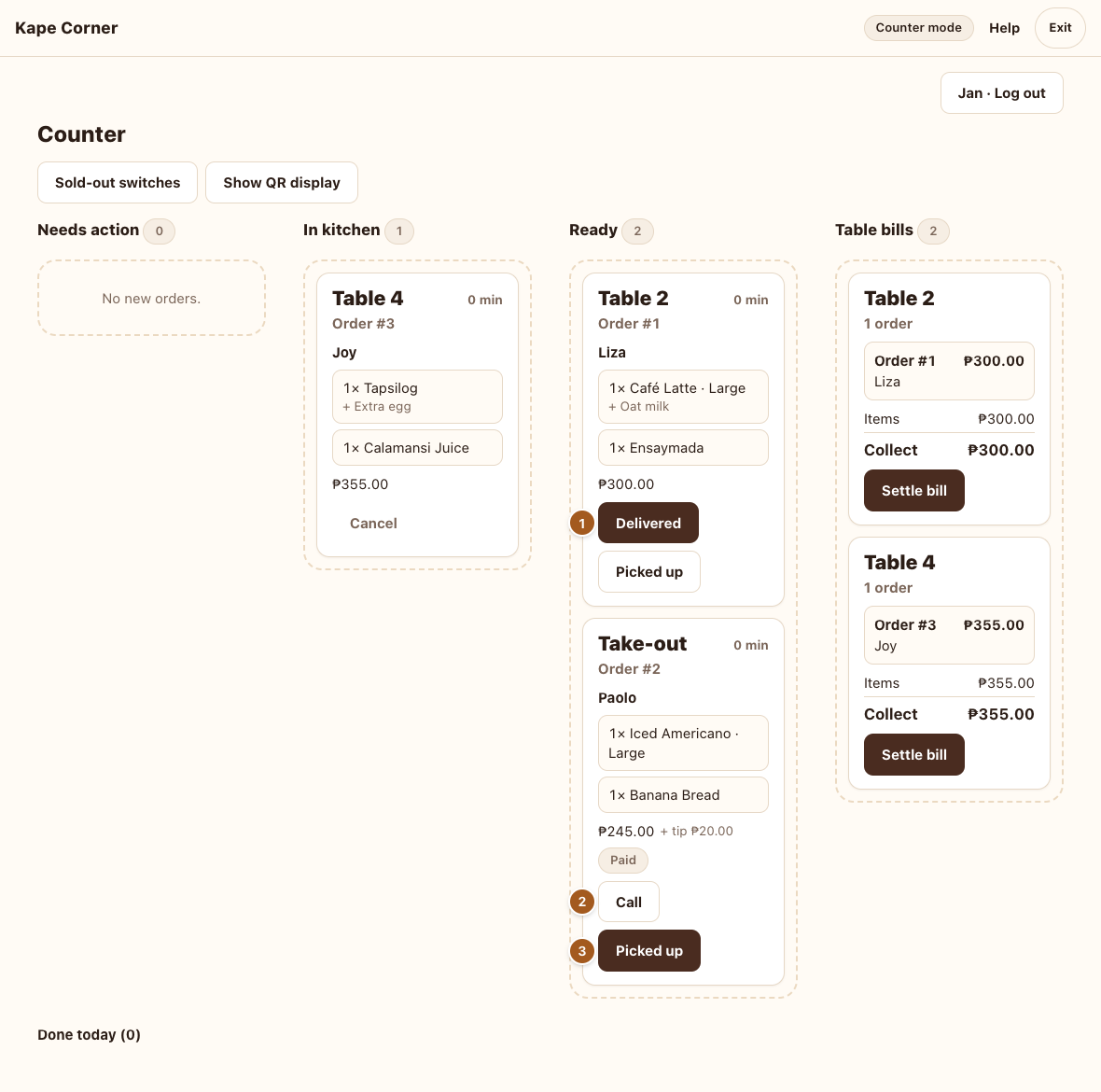
- Table order ready: take it over, tap Delivered.
- Call — the guest's phone shows “We're calling your name!”.
- Picked up when they collect it.
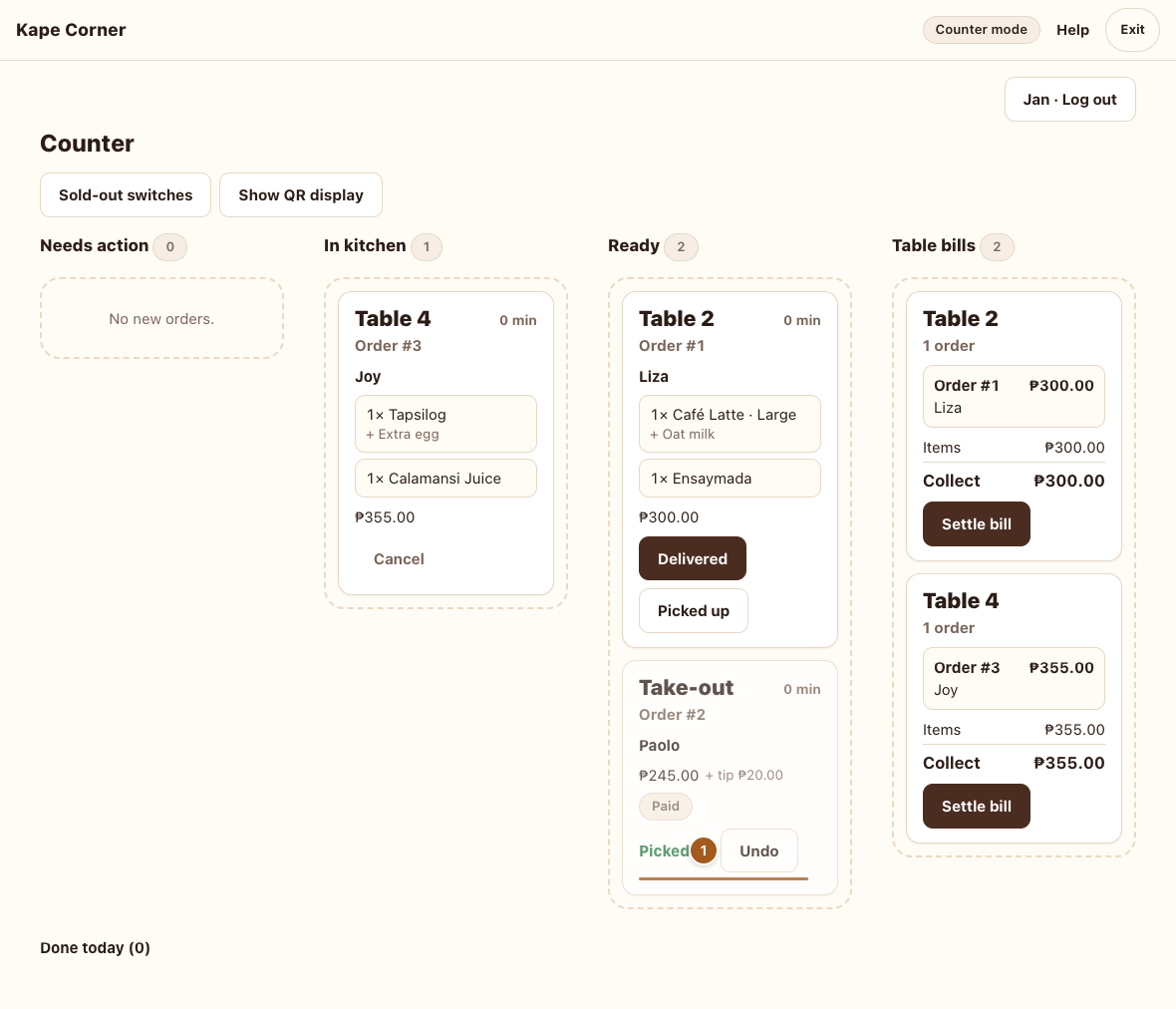
- Tapped the wrong one? Undo within 5 seconds.
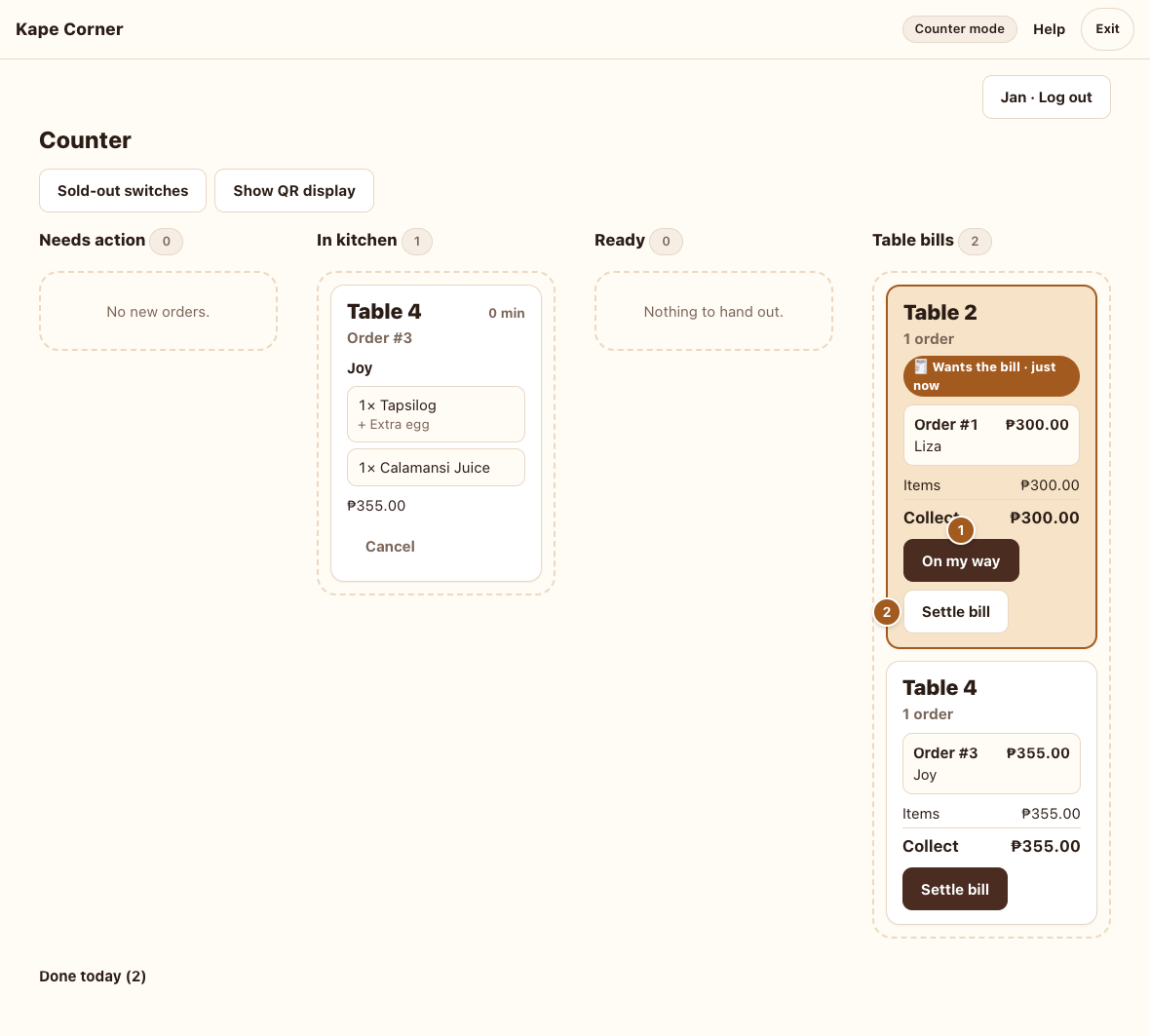
- 🧾 A table wants the bill (it moves to the top and chimes): On my way.
- Settle bill when they pay.
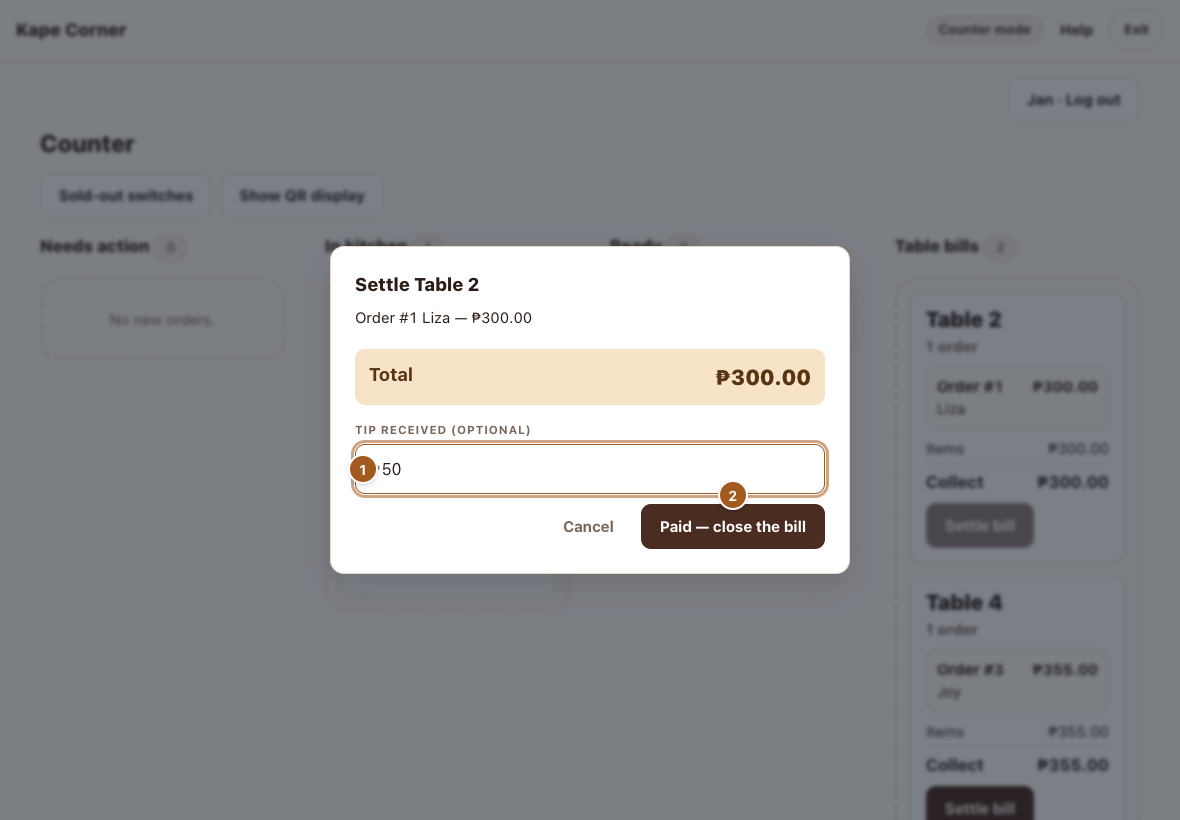
- The tip they gave, if any.
- Paid — close the bill. The table is free for the next guests.
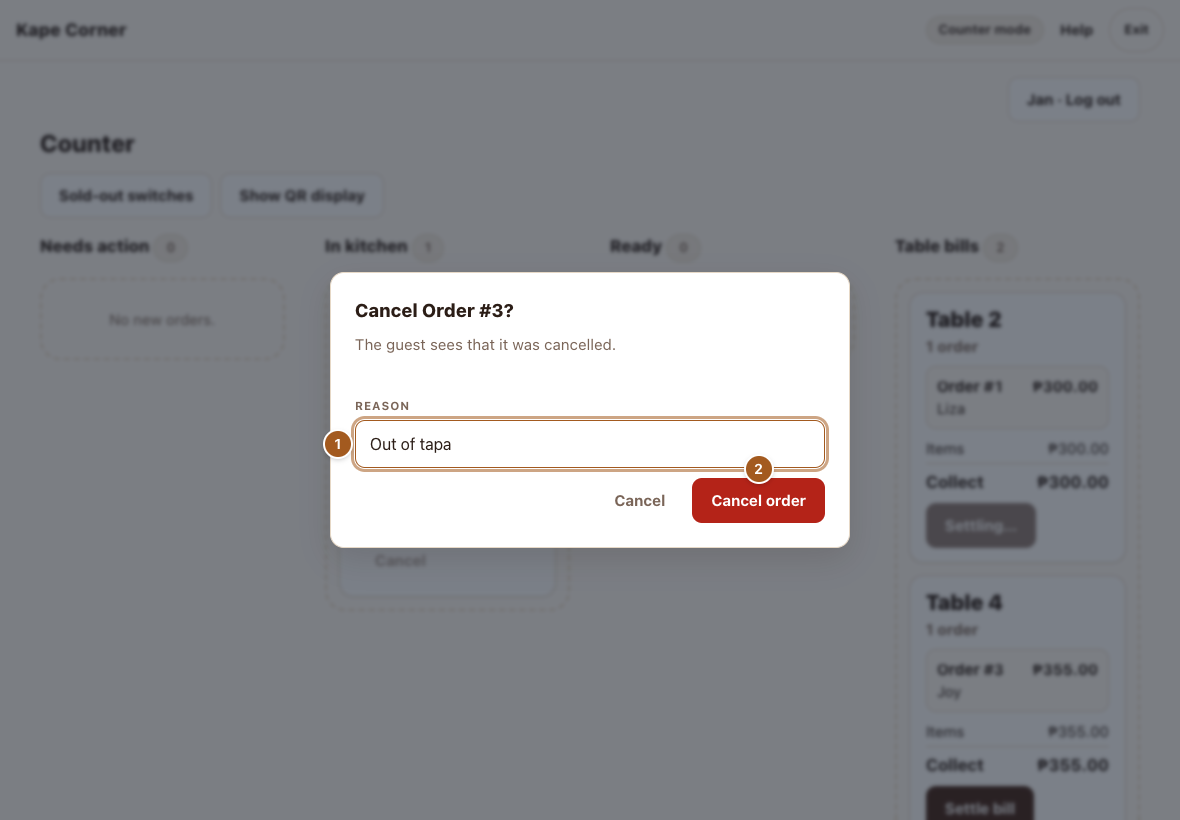
- Always give a reason — the guest and the kitchen see it. If it was paid, refund the amount shown.
- Cancel order.
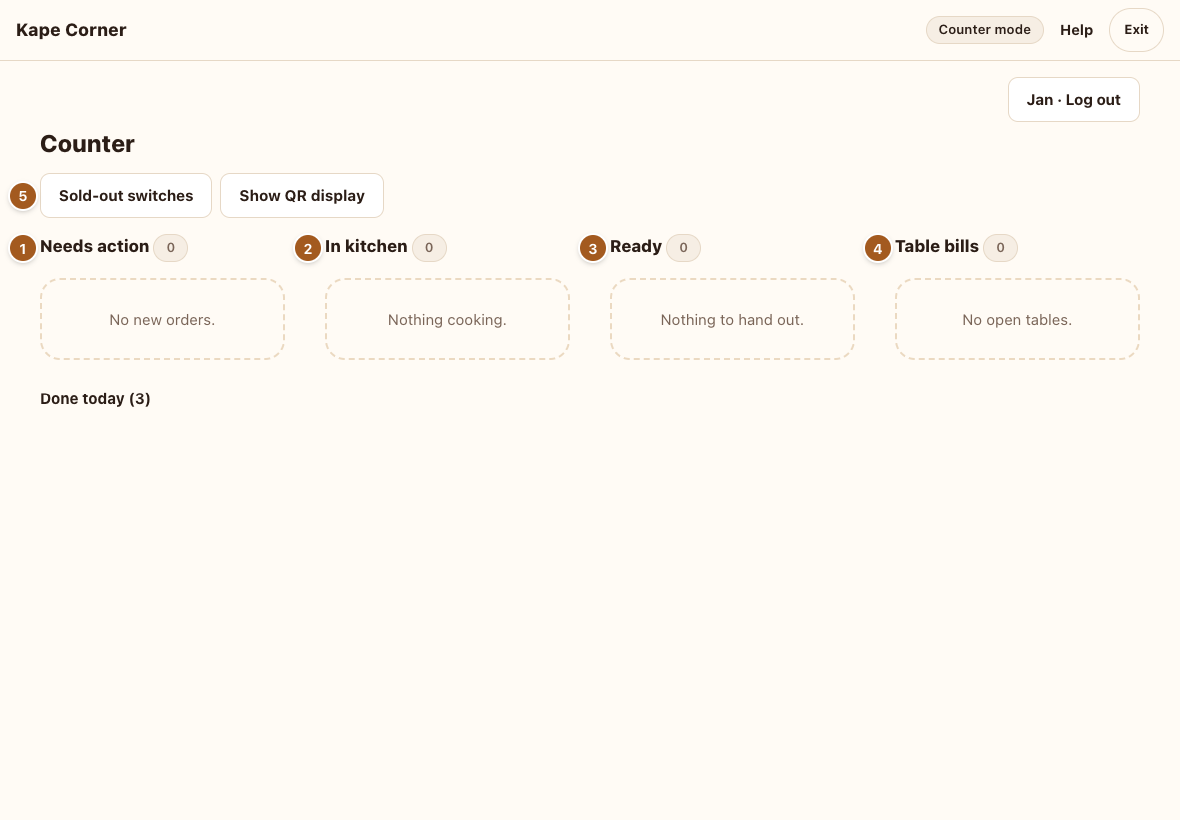
- Needs action — accept or take payment.
- In kitchen — being made.
- Ready — hand it over.
- Table bills — what each table owes.
- Sold-out switches — mark an item sold out right from the counter.
Leaving counter / kitchen mode
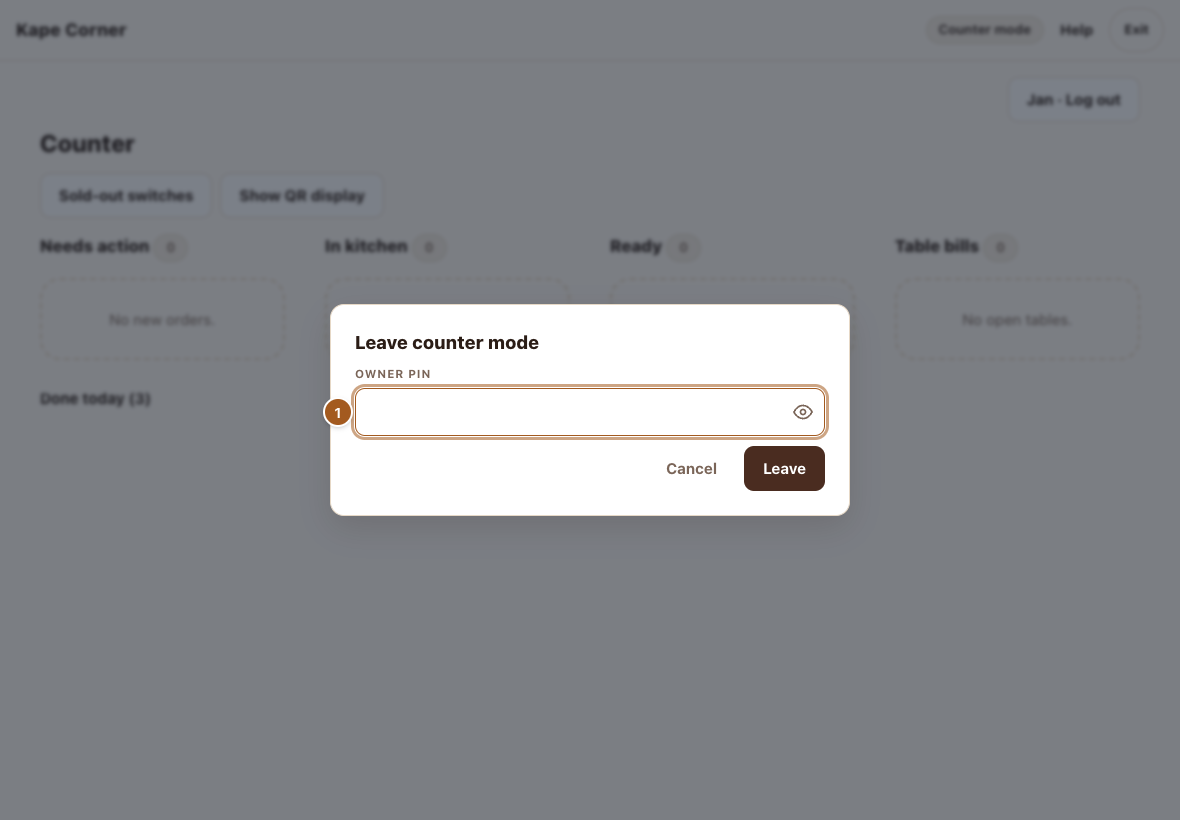
- Only the owner can leave: Exit → owner PIN.
Working the kitchen
The kitchen tablet shows what to cook, oldest first. New orders beep twice. No prices — just the food.
- Log in with your name and PIN. Several cooks can be logged in at once; each has their own Log out. Log out when you leave.
- Start when you begin an order — it moves to Cooking.
- Ready when it's done — the counter sees it straight away.
- A cancelled order turns red with the reason (a low beep). Stop cooking it, then tap Remove.
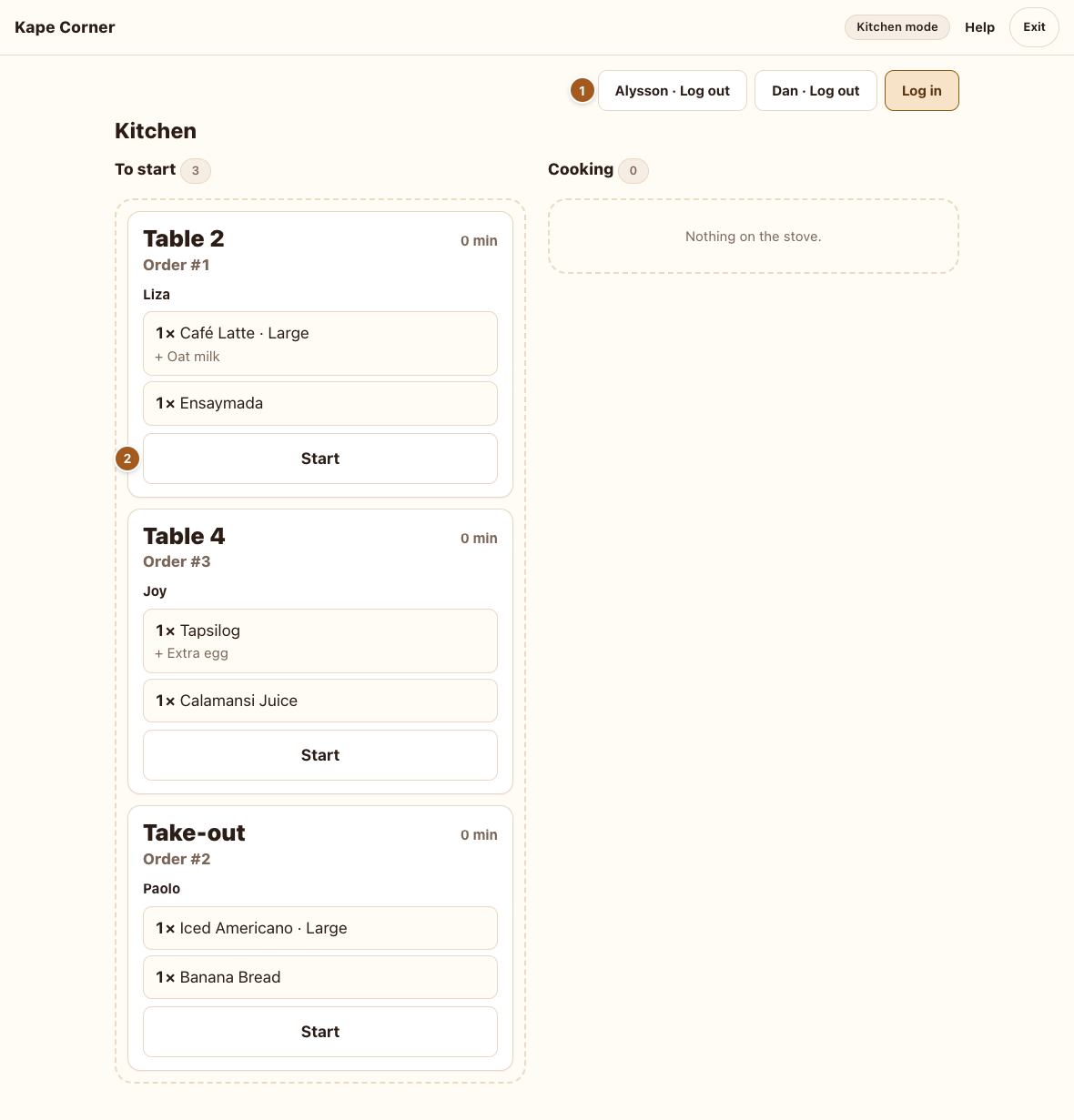
- Cooks logged in.
- Start.
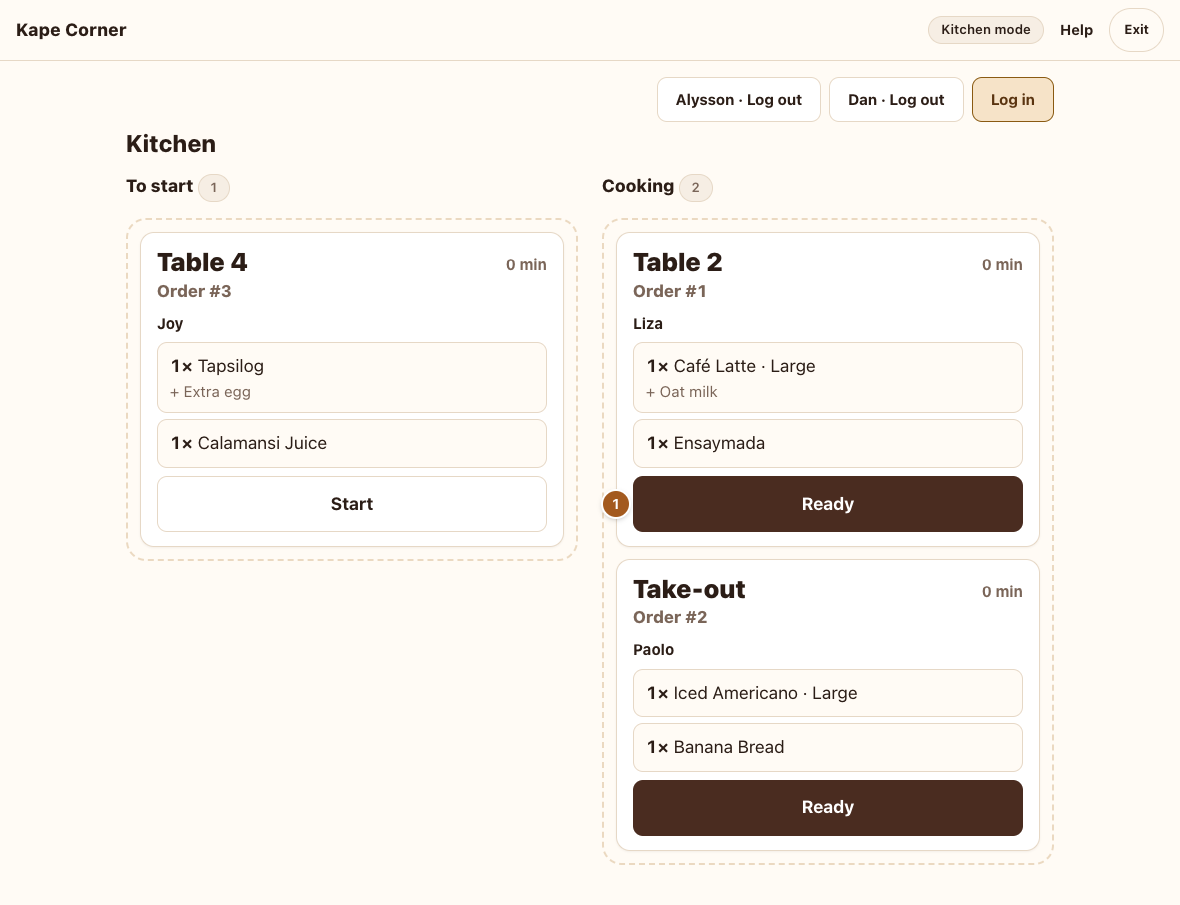
- Ready.
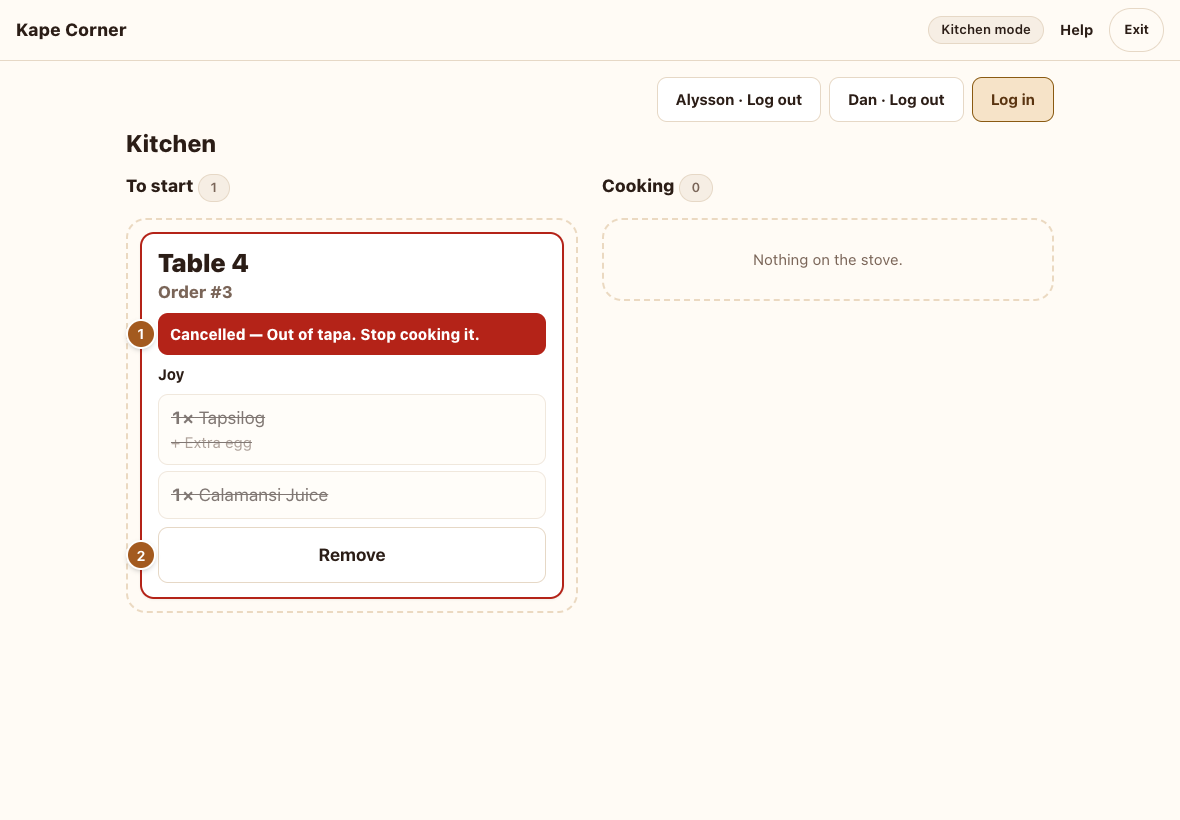
- Cancelled — the reason is shown.
- Remove once you've stopped.
The guest's ask for the bill, sold out items and payments are handled at the counter.
Questions & fixes
- An order isn't showing on the counter.
- Check the tablet is on Wi-Fi and in counter mode (the top bar says “Counter mode”). Table orders appear under Needs action first; counter orders appear once placed.
- No sound for new orders.
- Tap the board once after opening it (“tap to start”) and check the tablet's volume.
- I replaced a QR code and old cards stopped working.
- That's on purpose. Print the new card from Tables → Print and swap it on the table.
- A staff member forgot their PIN.
- Settings → Staff → Reset PIN. After 5 wrong tries the board waits 30 seconds.
- The log shows the wrong person.
- The board stamps whoever is logged in. Ask staff to log out at the end of their shift.
- Settle bill says “No connection” or “Couldn't confirm”.
- Settling needs the internet. Look at the board: if the table's bill is gone, it was settled; if it's still there, tap Settle bill again once you're back online.
- A guest can't order from their table.
- Check the table isn't switched off (Tables), and that your email is verified (Settings).